How to make a 360° virtual tour in several languages
Offer one 360° virtual tour in English and other languages: which to choose, what to translate, right-to-left text, and how visitors switch.
By Ben Kenyon, Founder of PanoramrUpdated 4 min read
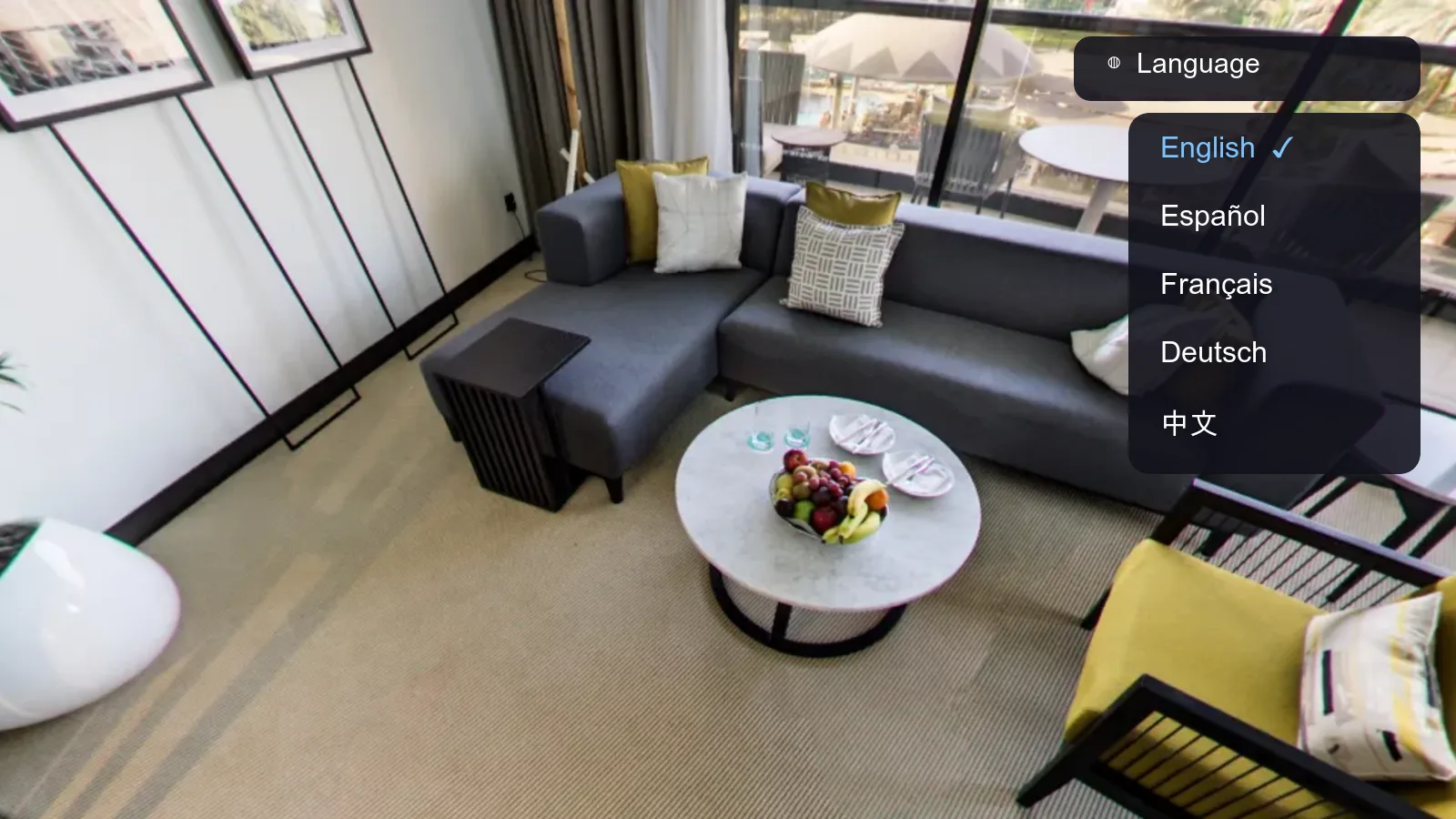
In short
Keep one tour and add languages to it, rather than copying the tour for each language. Choose the languages your visitors actually speak, translate the tour's name and description, the room and group names and every hotspot's text, and have a native speaker read it. Arabic and Hebrew read from right to left, so check the menus too. Visitors switch with a language button, and you can link straight to each language from your website. In Panoramr, visitors see the other languages on a paid plan or a hosted tour.
One tour, several languages
A hotel with guests from abroad, a university recruiting overseas, a museum or a city attraction: anyone whose visitors speak more than one language gets more from a tour they can read. The rooms are the same in every language, so there is no need for a copy of the tour per language. Add languages to the one tour instead: every change to the rooms, the links or the design then reaches every language at once, and there is one address to share.
Choose the languages
- Start from your visitors. Your website's analytics, your bookings or your enquiries show where people come from. One or two extra languages that cover most of them beat ten that are never opened.
- Count the words. Every language means translating the whole tour again whenever its text changes, so keep the text short and add languages you can keep up to date.
- Check the script. Chinese needs no extra care. Arabic and Hebrew read from right to left (see below).
What to translate
The photos need no translating; the words round them do:
- The tour's name and description, which visitors see first and search engines show.
- Room names and group names, such as "Lobby" or "Ground floor", in the tour's lists and menus.
- Hotspots: each note's title and text, and the words on buttons and links.
Some words often stay in one language: the names of documents and media you attach, and text inside the photos themselves, such as a sign on a wall. In Panoramr, the labels of a menu you built yourself and the multi menu's call-to-action button also stay as you typed them, so keep those to words that work for everyone.
Get good translations
- Have a native speaker read every language. Machine translation is a fair first draft, but a room name or a short button label can come out oddly without a sentence round it.
- Keep labels short. A two-word room name in English can become four in German, and a button has a fixed width.
- Use the same word for the same thing in every room, so "Suite" does not become three different words across the tour.
Arabic, Hebrew and other right-to-left languages
In a right-to-left language the menus, lists and text start on the right. The room itself does not change, and nor do the arrows that turn the view. After translating, open the tour in that language and check that names and notes read naturally and nothing is cut off.
How visitors choose a language
- A language button. Most tour makers show a globe or a language menu in the tour's bar; visitors pick their language and the tour's text changes at once.
- A link per language. If your website has a page in each language, link each page to the tour in that language. In Panoramr, add
?lang=and the language code to the tour's address, such as?lang=defor German, in a link or in an embed code. - Do not rely on the browser. Some tours pick a language from the visitor's browser settings; Panoramr's do not, and open in English until the visitor picks another. That keeps the first view predictable, so make the language button easy to see.
In Panoramr
Add a language under Tour Languages on the tour's Settings tab (in the Advanced view), choose it in the Editing list above the tabs, and type the translation of each text (translate a tour):
- Six languages are built in: Spanish, French, German, Chinese, Arabic and Hebrew. In these, some of the player's own words, such as
All,MenuandBack, are translated too. - Any other language can be added by its two-letter code, such as
itfor Italian orpt-BRfor Brazilian Portuguese, up to 20 of them. Your own text shows in it; the player's own words stay in English. - An empty text shows in English, so a half-finished language still works.
- Visitors see the other languages when the tour's owner is on a paid plan, or the tour is hosted in a Vault or a plan's hosting, or has been. On a Free plan, a tour that has never been hosted shows its visitors English only. Every plan can add and type the translations, and try them on the Preview tab.
Questions
Can a virtual tour have more than one language?
Yes. Add the languages to the one tour and translate its text; visitors switch with a language button, and the rooms stay the same for everyone.
Do I need a separate tour for each language?
No. One tour with several languages is easier to keep up to date: a new room or a design change reaches every language at once, and you share one address.
How do I link to a tour in a particular language?
In Panoramr, add ?lang= and the language's code to the tour's address, for example ?lang=fr for French. It works in a link and in an embed code's address.
Does a multilingual tour work in Arabic and Hebrew?
Yes. In Panoramr, Arabic and Hebrew are built in, and the tour reads from right to left in them: menus, lists and text start on the right.
What happens to text I have not translated yet?
In Panoramr it shows in English, so a language can go live before every text is translated.