Translate a tour into other languages
Add languages to a tour, translate its text, and see which languages the player shows, how visitors choose one and what stays in English.
Guide7 min read Updated
On this page
The short answer
Add a language under Tour Languages on the tour's Settings tab (in the Advanced view), choose it in the Editing: list, and type the translation of each text. Visitors choose a language with the globe button in the player, or with ?lang= at the end of the tour's address.
The player shows five of the ten languages in the list: Spanish, French, German, Chinese and Arabic. You can add Italian, Portuguese, Dutch, Russian and Japanese and fill them in, but a visitor who picks one of those five sees the English text.
Who can do it and what it needs
- Adding and removing languages is on the Settings tab, in the Advanced view: the owner, and Admin collaborators by default (what each tab does).
- Typing translations needs the tab where the text is. Editors have Panoramrs, Floor Plans and Hotspots by default. The Tour and Settings tabs save only for the owner and Admin collaborators.
- Plans. Any plan can add languages, type the translations and see them in the editor and on the Preview tab. Visitors get them, the globe and
?lang=included, when the tour's owner is on a paid plan, or the tour is in a Vault or your plan's hosting, or was. On a Free plan, a tour that has never been hosted shows its visitors English only, with no globe, and?lang=shows English too; your translations are kept, and visitors get them as soon as the tour is hosted or you move to a paid plan. The Tour Languages card on the Settings tab saysVisitors see this tour in English until it is hosted or you are on a paid plan.when that is so. Where the globe sits also depends on the theme: a tour in a Pro theme that has never been hosted shows the free Default look, so a globe you put in the Icon Bar or the Top Nav Bar - Multi Menu goes with it.
Add a language
- Open the tour and click the Settings tab (click Advanced at the right end of the tab row first if the tab is not there).
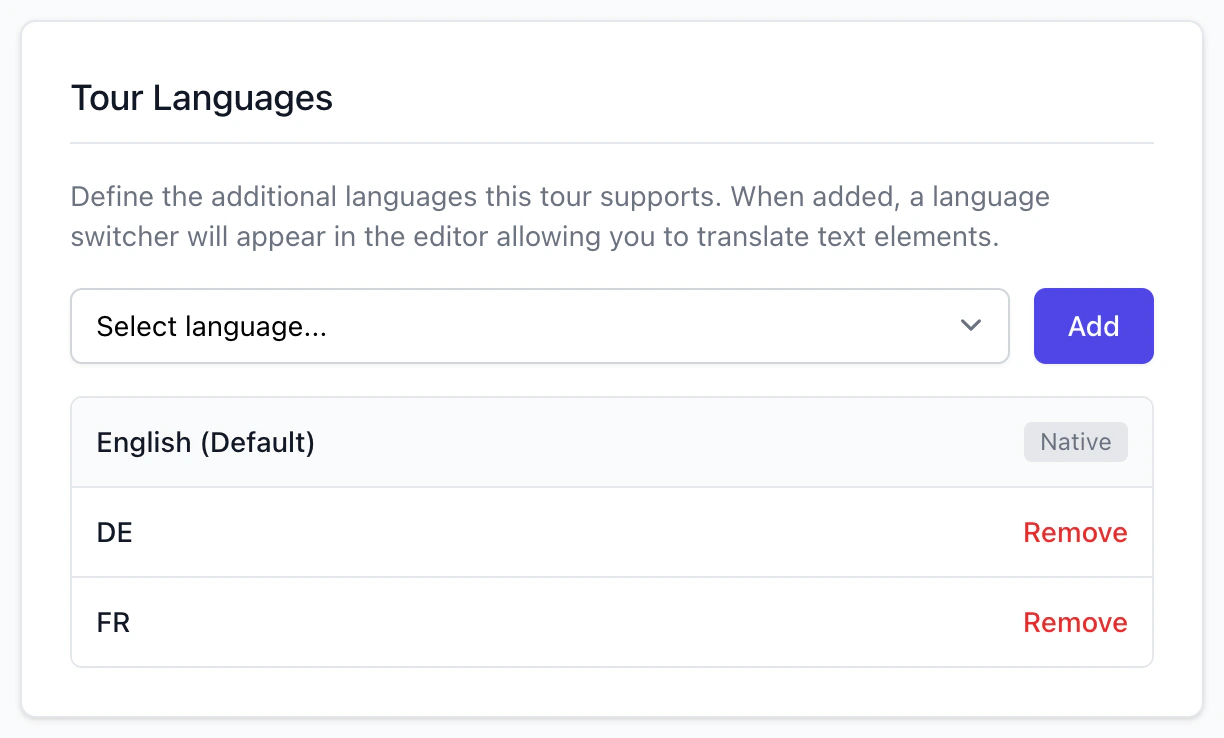
- In the Tour Languages card, open the list that starts with Select language..., choose a language and click Add.
- The language is listed under English (Default) (marked Native) by its two-letter code, for example
DE, with a Remove button.
Adding saves the whole Settings page, including anything else you changed there and had not saved. Remove asks you to confirm. The text you entered for the language stays saved, and the language leaves the globe and the Editing: list.
| In the list | Code | A visitor who picks it sees |
|---|---|---|
| Spanish, French, German, Chinese, Arabic | es, fr, de, zh, ar |
Your translation of each text, and English where a text is empty |
| Italian, Portuguese, Dutch, Russian, Japanese | it, pt, nl, ru, ja |
The English text |
Translate the text
- Once a tour has a language, Editing: appears in the row of tabs, on every tab. It lists English (Default) and your languages by code. Choose one. The page reloads.
- Open a tab from the table and type the translation. On the Tour, Settings, Panoramrs and Floor Plans tabs a box is empty until you type one, with the English text as its placeholder. On the Hotspots tab a box with no translation yet shows the hotspot's existing text: type over it.
- Choose English (Default) to go back to the original.
| Tab | What you translate |
|---|---|
| Tour | The tour name (the large box at the top) and Description |
| Settings | Tour Name and Description (the same two texts), the names of your Panorama Groups (click Translate beside a group) and Ungrouped Items Label |
| Panoramrs | Panoramrs Name and Panoramrs Description of the selected scene |
| Floor Plans | The name of each floor plan: click the pencil (tooltip Rename Floor Plan) |
| Hotspots | Title and Description / Content of an info hotspot (Label Description for a Simple Tooltip), the Button Text of an External Web Link, the Text Content (HTML Allowed) of a Rich Text surface hotspot, and the Media Source of an image or video surface hotspot |
Groups can be added and deleted only in English. With another language chosen you can translate the groups you have, and one without a translation reads (Untranslated).
Your choice in Editing: is kept by your browser and applies to every tour you open. Choosing AR also makes the editor read right to left.
What stays in one language
- The player's own words, such as its button names and the
MenuandBacklabels of the phone menu. - The labels and the button of the Top Nav Bar - Multi Menu, and any other text you type on the Design tab.
- The picture, audio, video and web addresses of an info hotspot, and its price.
- A downloaded copy: its language buttons do nothing there.
How visitors choose a language
- The globe. It shows only when the tour has at least one added language, and lists the codes in capitals. The Top Nav Bar - Dropdown panel has a Language Switcher that is ticked by default. The Icon Bar and the Top Nav Bar - Multi Menu have their own, and both bars are off by default. On a phone (768 pixels wide or narrower) the globe is in the bottom bar and has its own switch: the item
langin Mobile Navigation, which shows in the Advanced view and is ticked by default. Unticking Language Switcher in Top Nav Bar - Dropdown does not remove it. - The address. Add
?lang=deto the player address, and to thesrcof an embed code. - No automatic choice. The player does not read the visitor's browser language: a tour opens in English until the visitor picks another.
- The Preview tab shows your own design and your latest text on every plan, so you can try the globe there.
When visitors see a translation
Visitors get a stored copy of the page for each language. A save, Publish Changes and Deploy Draft to Live refresh the copies in every language the player shows. A visitor who picks Italian, Portuguese, Dutch, Russian or Japanese gets the English copy, which is refreshed with the others. With Draft Workflows on, nothing reaches visitors until you publish (my changes do not show).
Troubleshooting
Visitors who pick Italian, Portuguese, Dutch, Russian or Japanese see English. The list offers them, but the player applies only English, German, French, Spanish, Chinese, Arabic and Hebrew (Hebrew is not in the list). Use one of the five that work.
There is no globe in the public tour. The tour needs at least one added language. On a Free plan, a tour in a Pro theme that has never been hosted shows the globe in Top Nav Bar - Dropdown only. Language Switcher must be ticked in the panel of the bar you use: Top Nav Bar - Dropdown, Icon Bar or Top Nav Bar - Multi Menu on a computer, and lang in Mobile Navigation on a phone. And the stored copy must be current.
My translation does not show. An empty text shows in English. Check that you typed it with the right language chosen in Editing:, that the language is one of the five that work, and that the stored copy is current.
A name or description box is empty, or saving fails with The name field is required. Editing: is set to a language that has no name yet. Choose English (Default). If the list is not shown (a tour with no added languages), your browser still remembers a language from another tour: open a tour that has languages and choose English (Default).
Next steps
Was this article helpful?