Link hotspots
A door to another scene. Visitors click it to walk into the next room, and you can choose which way they face when they arrive, so the kitchen opens on the kitchen, not the wall behind the door.
Link scenes togetherClick a spot in a 360° photo to place a note, a picture, a video, a sound or a link. Visitors open it right where they are looking, on a phone or a computer.
A hotspot is a marker you place on a scene of a 360° tour. Panoramr has three kinds: link hotspots, which walk visitors to the next room; information hotspots, which open text, pictures, video, sound or a product; and surface media, which fixes a picture, a video, a web page or text onto a flat spot such as a screen or a wall. You place them on the Hotspots tab and they save as you go.
A door to another scene. Visitors click it to walk into the next room, and you can choose which way they face when they arrive, so the kitchen opens on the kitchen, not the wall behind the door.
Link scenes togetherA badge that opens a panel with a title, text and a picture, in the popup style you choose for the whole tour. The same badge can instead play a video, open a gallery, play a sound, show a product with its price, or open a web address.
A picture, a video, a web page or a block of text fixed onto a flat spot in the photo, such as a TV screen, a poster or a menu board. You drag four corners onto the surface, so it sits in the room’s own perspective. A video there plays by itself, muted, on a loop.
Put media on a surface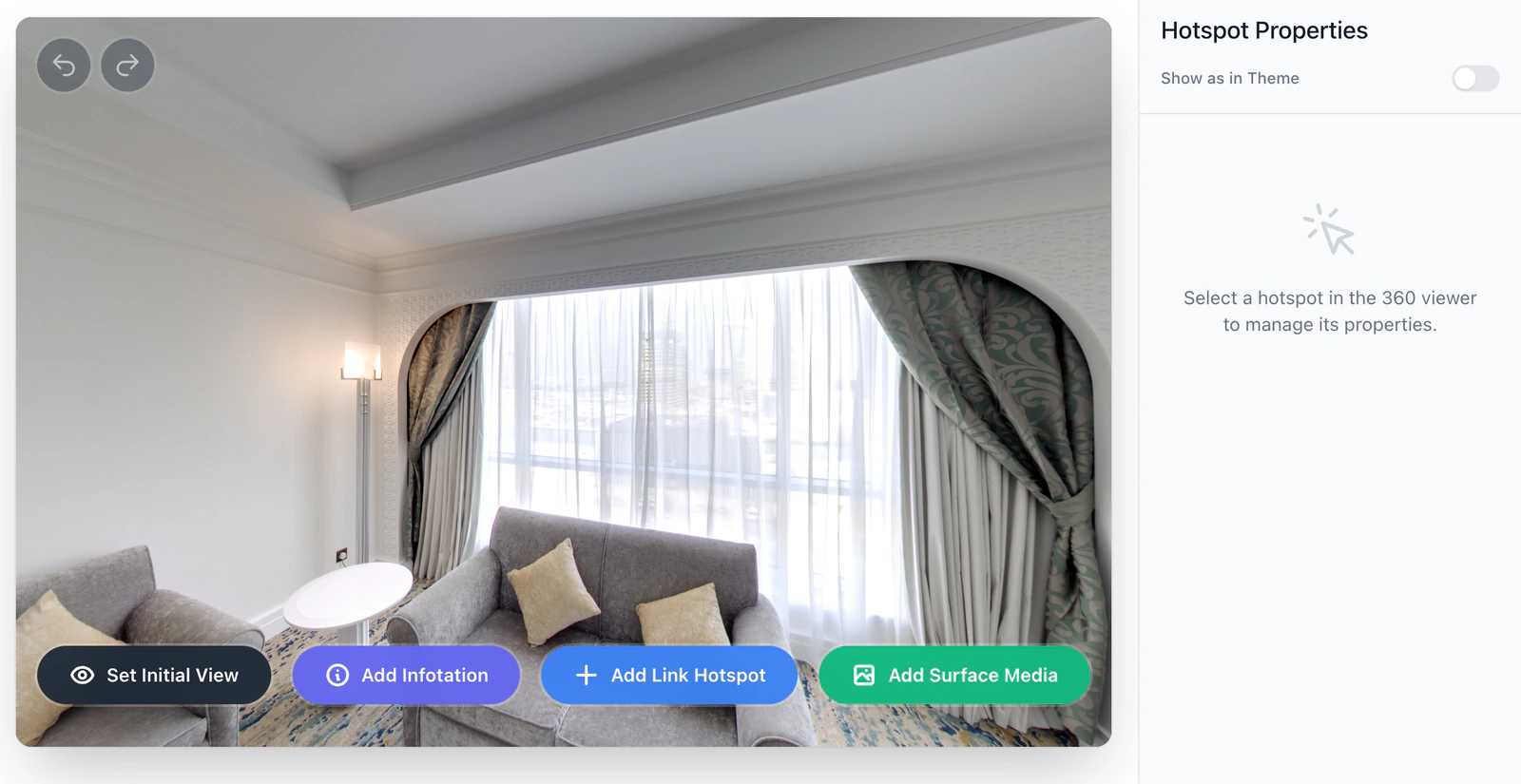
Open the Hotspots tab, click a scene, choose what to add and click the picture where it should sit. Changes save by themselves.
Click a spot in a photo to add a note, a picture, a video or a link. Visitors open it right where they are looking.
How it worksOpen a YouTube, Vimeo or MP4 video in a window, or play it on a screen or a wall inside the photo itself.
How it worksPut a picture, a video, a web page or a block of text onto a flat spot in the scene, such as a screen, a poster or a menu board.
How it worksA badge that opens a window of pictures, with one large picture and a row of small ones to click.
How it worksAdd a recorded welcome or a guide’s commentary to a spot in a room. It plays from the direction of its badge as the visitor turns.
How it worksSend visitors to a booking page, a menu or a shop: a button in the top menu, a link hotspot, or a product hotspot with a Buy Now link.
How it worksHotspots work best when they answer the question a visitor has in that spot.
They can click through: a button in the top menu, a link hotspot or a product hotspot’s Buy Now link opens your booking page or shop in a new tab. The tour has no booking or contact form of its own.
A YouTube or Vimeo address, or an MP4 file. In a window, the video plays with sound when a visitor clicks its badge. On a surface in the scene, it plays by itself, muted, on a loop.
Yes. An audio hotspot plays an MP3 or WAV file when a visitor clicks its badge. The sound comes from the direction of the badge as the visitor turns, and stops when they move to another room.
No. You type a title and the text. The text box also takes HTML, for a link or bold words, if you want it.
No. The Analytics tab counts views of the tour and of each room, not clicks on hotspots.
No. Every plan can add every kind of hotspot, the free plan included.
Upload a 360° photo and click where the note should go. Making a tour is free.