Hotspot types and settings in the Hotspots tab
The three kinds of hotspot, every infotation variant, the fields in Hotspot Properties, how to hide or delete one, and the limits and messages you may meet.
Reference8 min read Updated
On this page
The short answer
A hotspot is a marker you place on a scene. The Hotspots tab makes three kinds: an infotation (an information hotspot, with a list of variants), a link hotspot (a door to another scene) and surface media (a picture, video, web page or text fixed to a spot in the scene). Click a scene, click an add button, click the picture, and set the hotspot up in Hotspot Properties. Changes save by themselves.
Who can do it
- The owner, and collaborators whose role includes the Hotspots Tab: Editors and Admins by default. A Viewer does not get the tab. Saving a hotspot also needs the Panoramrs Tab. The owner changes roles under Client Workspaces (what each tab does).
- The Basic view offers Add Infotation, Add Link Hotspot and seven of the twelve variants. Add Surface Media, the other five variants, Color Override, Share with other Tours, Hotspot Preset and Show as in Theme are in the Advanced view (Basic and Advanced). A hotspot that already has one of them keeps it, and a surface media hotspot you already placed shows all its fields.
- Every plan can add hotspots. Where the site requires a confirmed email address, an unconfirmed account is sent to the Check your inbox page first (sign up and verify email).
The screen
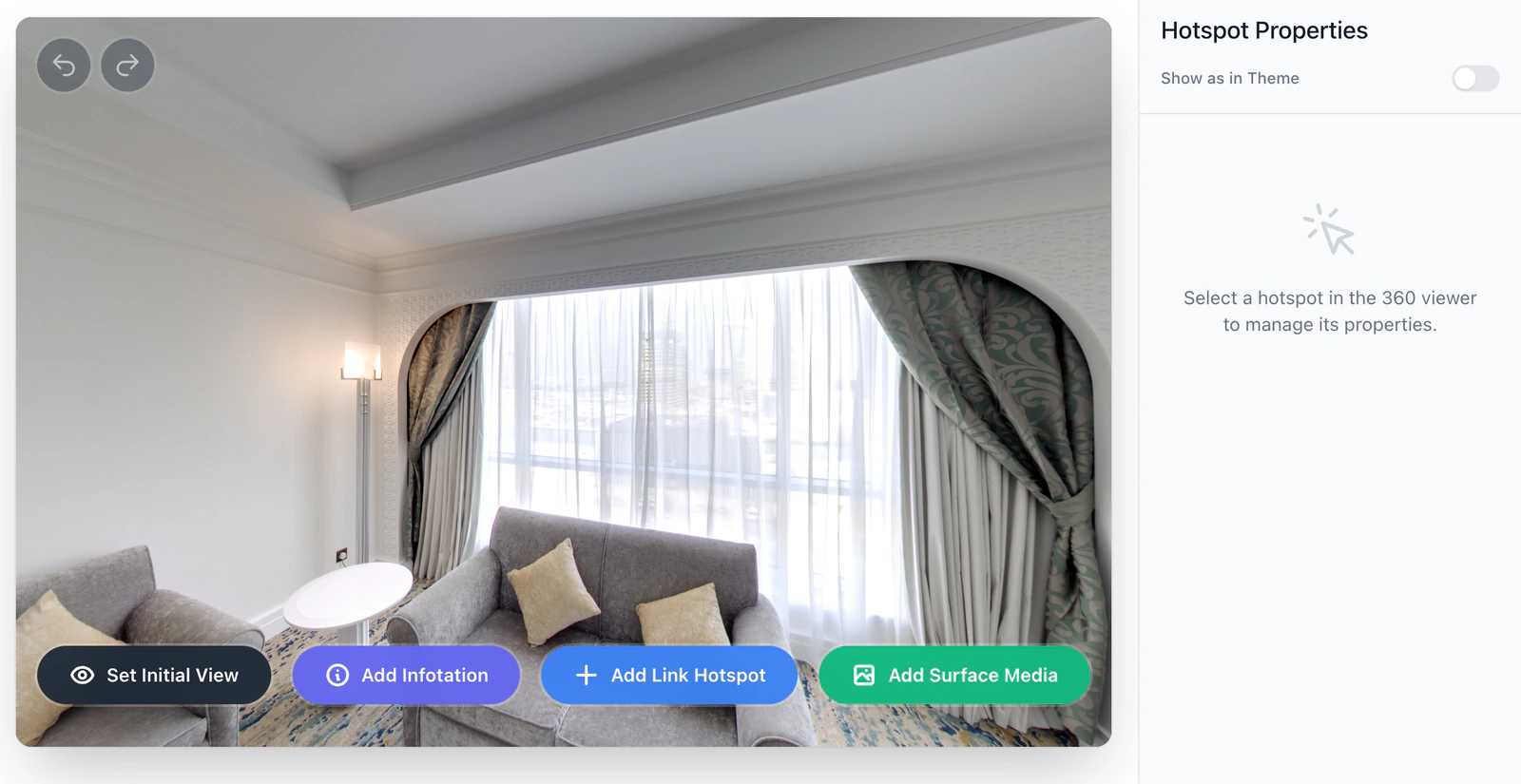
- On the left, Panoramas lists the scenes, with Search panoramas... above it. A row shows the scene's ID and a count such as
3 Hotspots. - In the middle is the picture, with undo and redo at its top left and four buttons along the bottom: Set Initial View (where visitors look first), Add Infotation, Add Link Hotspot and Add Surface Media (in the Advanced view).
- On the right is Hotspot Properties. With nothing selected it reads
Select a hotspot in the 360 viewer to manage its properties.While you edit, hotspots are drawn in black; Show as in Theme (in the Advanced view) draws them in the tour's colors.
Place a hotspot
- Click a scene (wait while it reads
Syncing to Cloud...), then click an add button. A message readsClick the panorama to place the infotation.(orlink hotspot, orsurface media). - Click the picture where the hotspot goes. Enter puts it in the middle of the view. Esc, or the same button again, cancels.
- The new hotspot is selected and its properties open. To move a hotspot later, click it to select it, then drag it.
The panel, kind by kind
The heading names the kind: Link Hotspot, Surface Media, Infotation or, for some variants, Video Hotspot, Image Gallery, Audio Narration, E-Commerce Product or External Web Link. Beside it are icons for Preview Hotspot Action (links only), Toggle Visibility in this Tour (an eye that turns gray with a slash when the hotspot is hidden) and Delete Hotspot (a bin). Every panel ends with Color Override, Share with other Tours (only on a hotspot made in this tour) and Hotspot Preset.
Link hotspot. Target Panorama and, once you have chosen a target, Target Camera View with Set View Override. Link scenes together has the steps.
Infotation. Variant comes first and decides the rest. A new infotation is a Classic Panel.
| Variant | Fields, in order | What visitors get |
|---|---|---|
| Classic Panel | Title, Description / Content | The tour's popup style (see the note) |
| Modern Tooltip, Full Modal Popup, Use Global Setting | Title, Description / Content, Media URL (Optional) | The tour's popup style (see the note) |
| Simple Tooltip | Label Description | A one-line label when the visitor points at the badge. With the Legacy PNG icon style it opens as a panel when clicked |
| Pulsing Icon | Title, Description / Content, Media URL (Optional) | A text panel; a ring pulses around the badge |
| Video | Video and Browse, Autoplay Video | The video in a window (video guide) |
| Image Gallery | Title, Description / Content, Select image and Browse, Open in Media Window | One picture, or a window with several (gallery guide) |
| Audio Narration (Play/Pause) | Audio File URL (.mp3, .wav) and Browse | A badge that plays the sound (audio guide) |
| Audio Narration (Popup Player) | Audio File URL (.mp3, .wav), Title, Description / Content | A panel with an audio player |
| E-Commerce Product | Price, Checkout URL, Title, Description / Content, Select image | A window with picture, text, price and, with a Checkout URL, a Buy Now link |
| External Web Link | Target URL, Button Text, Title | The address opens in a new tab. The player does not show the Button Text (call-to-action buttons) |
Surface media. Content Type (Image, Video, iFrame / Website or Rich Text), then Media Source with Browse (images and videos only) or, for Rich Text, Text Content (HTML Allowed) with Text Color and Font Size (px). Then Dimensions (px), Media Fit and Positioning Method, where Edit Corners pins the media to the scene. See Surface media.
On every kind. Color Override sets this hotspot's color, and Clear Override returns to Using global default. On surface media it colors Rich Text only. Share with other Tours is off for a new hotspot: other tours that use the panorama show it only when it is on (sharing). Hotspot Preset applies a saved color and variant to the hotspot (presets).
Hide or delete a hotspot
The Toggle Visibility in this Tour eye hides the hotspot in this tour and brings it back. The bin, or the round bin beside a selected hotspot, opens Remove Hotspot:
- Hide in this Tour keeps the hotspot on the panorama and takes it out of this tour (it reads Already Hidden when it is hidden already). Other tours that use the panorama are not changed.
- Delete Hotspot (Globally) removes it from the panorama's own list of hotspots. A tour that added the panorama from your Asset Library keeps its own copy of that list and goes on showing the hotspot until a save from that tour's editor replaces the copy (sharing hotspots). The window lists them under
Also used in these tours:. Undo brings it back while you stay on the page.
With no hotspot selected, From Other Tours lists other tours' hotspots on this panorama, with Hide All External Hotspots and Show All External Hotspots.
Limits
| What | Limit |
|---|---|
| Hotspots on one panorama | 500. Hidden hotspots, and hotspots made in other tours that use the panorama, count. |
| The Title of an infotation | 100 characters. The box then shows Character limit reached (100 max). |
| An address (picture, video, sound, link) | Start the whole address with https://. Another start, such as javascript:, is removed when the hotspot is saved. |
Save, undo and two people editing
- There is no Save button: a change is saved half a second after your last one.
- Undo is Ctrl+Z (Cmd+Z on a Mac) or the button at the top left of the picture. Redo is Shift+Ctrl+Z or Ctrl+Y. Each scene keeps its last 100 steps until you leave the page, covering adding, deleting, editing, moving, hiding and the initial view.
- Hotspots belong to the panorama, so two people editing it can collide. The editor then shows
Someone else changed this panorama's hotspots while you were editing.Your changes are not saved. Load their changes drops yours and takes theirs. Keep mine replaces theirs with yours.
A hotspot save refreshes the stored copy of the tour that visitors get, for every tour that uses the panorama, unless that tour has Draft Workflows on: then visitors see it after Publish Changes. See My changes do not show for visitors.
Troubleshooting
A panorama can have at most 500 hotspots. Delete hotspots you no longer need. Hiding one does not help: hidden hotspots count.
Red text reads Could not save: and a reason. The server refused the change. Reload the page and make the change again.
A hotspot is in the editor but visitors do not see it. Check that it is not hidden in this tour (the gray eye), that it was not made in another tour without Share with other Tours, that a link has a target and that the target scene is in this tour, and that the change has reached visitors (Draft Workflows, stored copy).
A popup does not open in the editor. Clicking a badge there selects the hotspot. Open the Preview tab and click it there.
Next steps
Was this article helpful?