Set the starting view of a scene
Choose which way visitors face when a scene opens with Set Initial View: where the button is, what is saved for the tour and why your zoom is not used.
Guide5 min read Updated
On this page
The short answer
To choose where visitors look when a scene opens, open the tour's Panoramrs tab, click the scene in Panorama List, drag the picture until what you want is in the middle, and click Set Initial View. The direction and the tilt are saved for this tour. The zoom is not used: every scene opens at the tour's Initial Global Zoom (FOV).
Who can do it
- The owner, and a collaborator whose role includes the Panoramrs tab: Editors and Admins, by default. The Hotspots tab has the same button and saves the same way, so it needs the Panoramrs tab in the role too. The owner changes roles under Client Workspaces.
- No plan is needed. The starting view belongs to the scene, not to the design, so it applies to the public page on every plan.
Set the view
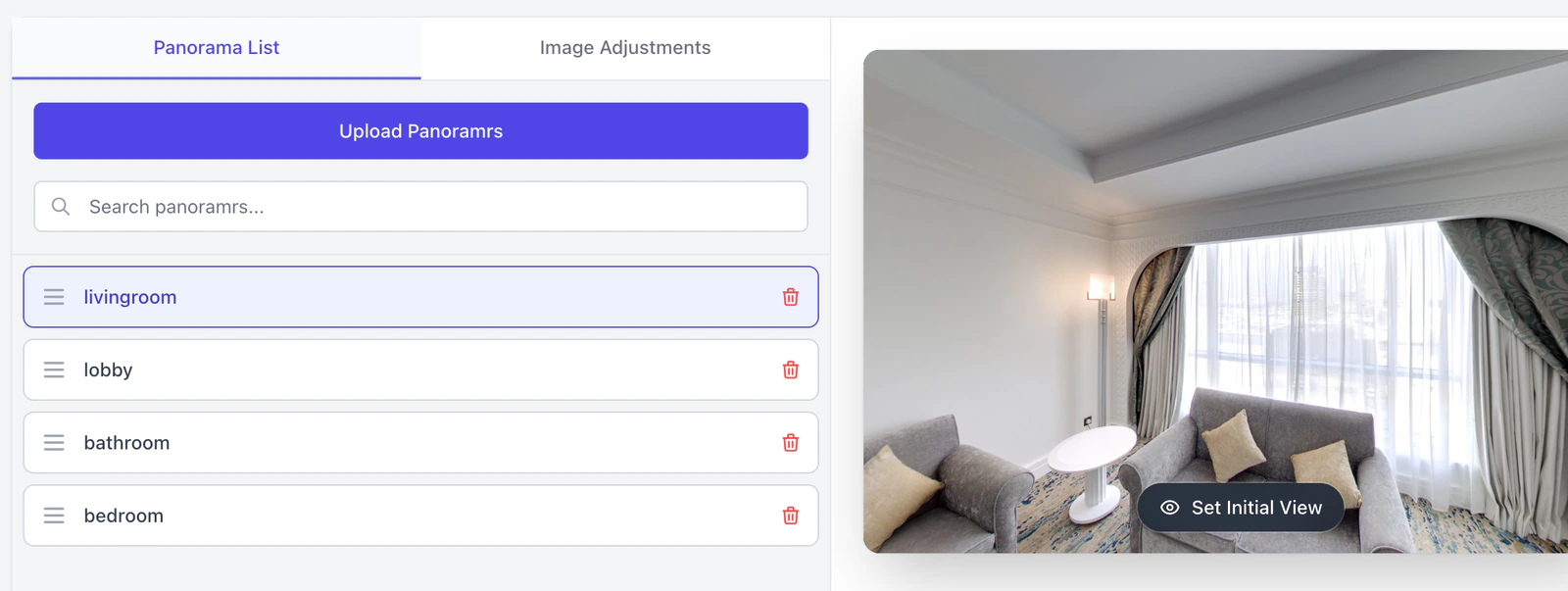
- Open the tour and click the Panoramrs tab.
- In Panorama List on the left, click the scene.
- Drag the picture until what visitors should see first is in the middle of it. The point in the exact middle is what is saved.
- Click Set Initial View at the bottom of the picture. The button turns green and reads
View Set Successfullyfor a second. There is no Save button: the view is saved at once.
To check it, click another scene and then this one again, or open the Preview tab and move to the scene in the player. It opens on the saved view.
The Hotspots tab has the same button, beside the buttons that add hotspots. There Ctrl+Z (Cmd+Z on a Mac) undoes it.
While a scene reads Syncing to Cloud... its picture is not loaded and the button does nothing. Wait until that has gone.
What is saved
| Part | Saved | What visitors get |
|---|---|---|
| Direction (left or right, called heading or yaw) | Yes | The scene opens facing it. |
| Tilt (up or down, called pitch) | Yes | The scene opens tilted that way, kept inside the vertical limits of the Design tab (restrict vertical angles). |
| Zoom | Saved, not used | The scene opens at the tour's Initial Global Zoom (FOV), 90° unless you change it. |
Initial Global Zoom (FOV) is on the Design tab, in Global Aesthetics. It shows only after you click Advanced. It applies to every scene, so zooming the picture before you click Set Initial View changes nothing for visitors. Initial Global Zoom (FOV) and the vertical limits are saved with the tour, not with a theme, so visitors get them on every plan. A free download is the Standard design: every scene opens at 90 degrees with no vertical limit.
The view belongs to this tour. If another tour uses the same panorama, it keeps its own starting view. A scene with no saved view opens level, with no tilt.
Where visitors see it
Visitors get the starting view each time they open the scene: when the tour begins on it (a tour opens on the first scene of the list on the Tour tab), and when they pick it from the gallery, a list or a floor plan pin. A link hotspot can give visitors who arrive through it a different view: see Click-anywhere or node-based navigation.
The save refreshes the stored copy of the tour for every tour that uses the scene's panorama, unless that tour has Draft Workflows on. The first visit afterward builds the new copy. With Draft Workflows on, visitors keep the old view until you click Publish Changes. See My changes do not show for visitors and Hold back edits until you publish them.
Other things that change the view
- Calibrate Radar. Set Position in the Calibrate Radar window of the Floor Plans tab (in the Advanced view) replaces the scene's starting direction with the direction its 3D camera faces, and removes the saved tilt and zoom. Set the view again afterward if you want a tilt. See floor plans and the minimap.
- Google Street View. It is not sent the starting view. It is sent the panorama's saved heading, the one Calibrate Radar saves. See Publishing to Google Street View.
Troubleshooting
The Set Initial View button does nothing. The scene is still syncing, or its picture has not loaded. Wait until Syncing to Cloud... has gone, then click again.
Visitors still open the scene on the old view. The stored copy has not been refreshed. If the tab row shows Draft Mode Active, click Publish Changes. Otherwise see My changes do not show for visitors.
The scene opens at a different zoom from the one I framed. The zoom is not used. Change Initial Global Zoom (FOV) on the Design tab instead, and note that it applies to every scene.
A link opens the scene facing another way. The link has its own Target Camera View, which wins over the starting view. Its panel reads Custom view override is set.
The scene opens facing a new direction after I calibrated the radar. Set Position replaced the starting direction. Select the scene and click Set Initial View again.
I cannot tilt the picture as far as I want. Once you save them, the vertical limits of the Design tab also apply to the pictures in the Panoramrs and Hotspots tabs. Raise the limits to frame a steeper view.
Next steps
Was this article helpful?