Organize scenes into panorama groups
Create groups in Settings, put each scene in one on the Panoramrs tab, and turn on Side Nav - List Menu with Nested Navigation so that visitors see the groups.
Guide6 min read Updated
On this page
The short answer
A group is a label you give to scenes, such as Ground Floor. Create groups under Settings, in Panorama Groups (in the Advanced view). Put each scene in one on the Panoramrs tab. Then switch on Enable Side Nav - List Menu and Nested Navigation (Categories) on the Design tab. Visitors see groups only then: both are off by default.
Who can do it
- Groups are created on the Settings tab (in the Advanced view): the owner, and Admins by default. Scenes are assigned on the Panoramrs tab: Editors and Admins by default. The Design options need the Design tab, and saving a design also needs the Settings tab.
- The app also calls a group a category, in Nested Navigation (Categories) and in some messages. It is the same thing.
- The side menu is switched on in the tour's settings, not by a theme, so visitors see the groups on every plan. Its look (position, style and colors) is part of a theme: a tour in a Pro theme that has never been hosted, on a Free plan, shows the free Default look of it. The Preview tab and the preview on the Design tab show your own design, side menu included.
Create groups
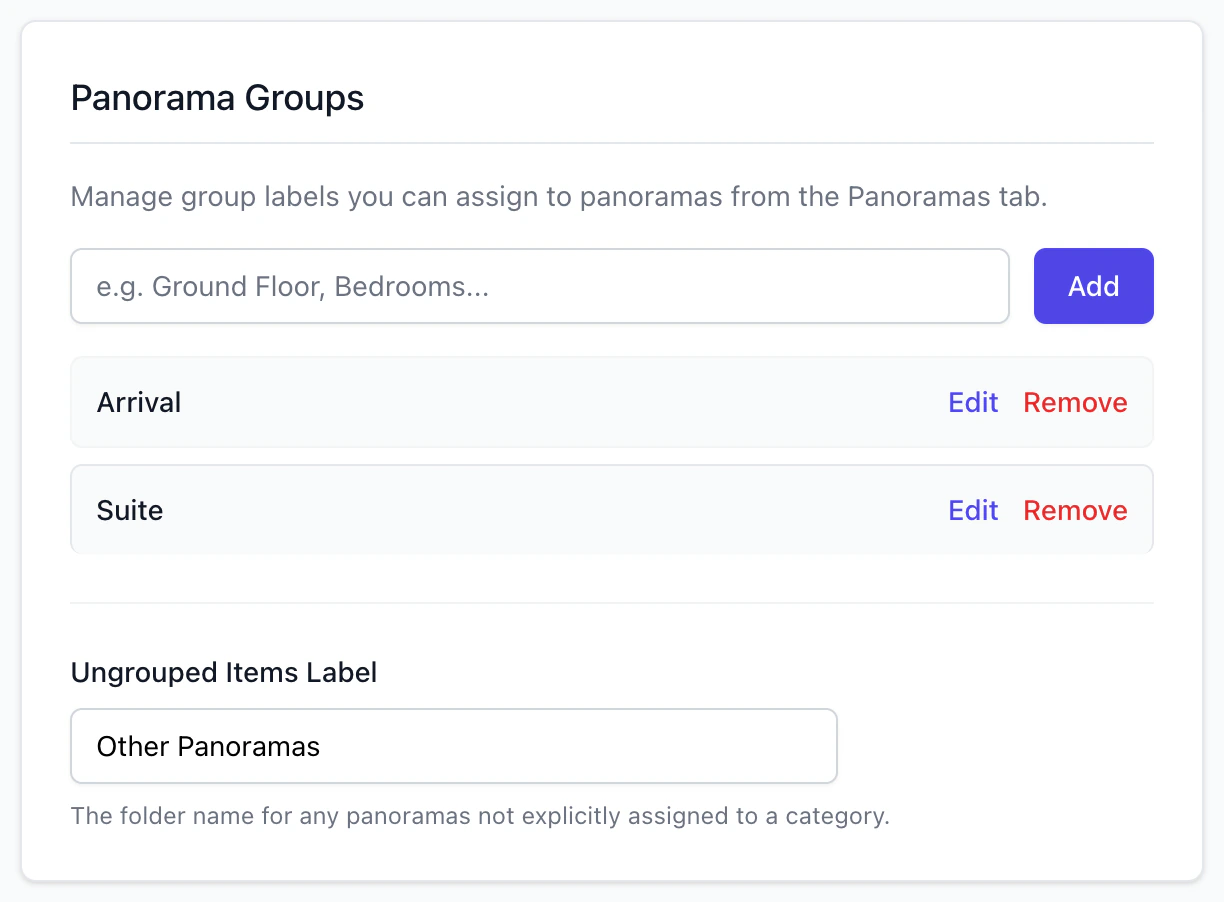
- Open the Settings tab (click Advanced at the right end of the tab row first if the tab is not there). In the Panorama Groups card, type a name and click Add, or press Enter. The group is saved at once. A name can have up to 100 characters. A name that is already in the list is ignored, and capital letters count as a different name.
- Edit renames a group, and it renames it on the scenes of this tour that use it. Remove asks you to confirm. If scenes use the group, the message says
The category "…" is currently assigned to N panorama(s), and they become ungrouped. - Visitors see groups in the order of this list. There is no control to reorder it. A group that scenes use but the list lacks comes after the others, in alphabetical order, and a group with no scenes is not shown.
- Ungrouped Items Label names the folder for scenes with no group. It starts as
Other Panoramas. Unlike the groups, it is saved only when you click Save Properties. The same setting is Ungrouped Folder Label under Side Nav - List Menu, which shows after you click Advanced and tick Nested Navigation (Categories).
Adding, renaming or removing a group saves the whole Settings page, so any other change you made there is saved with it.
You add and delete groups while Editing: is English (Default). In another language the box is replaced by Switch back to English (Default) to add or delete panorama groups. You can translate existing groups here., and Edit becomes Translate. See Translate a tour into other languages.
Put scenes in groups
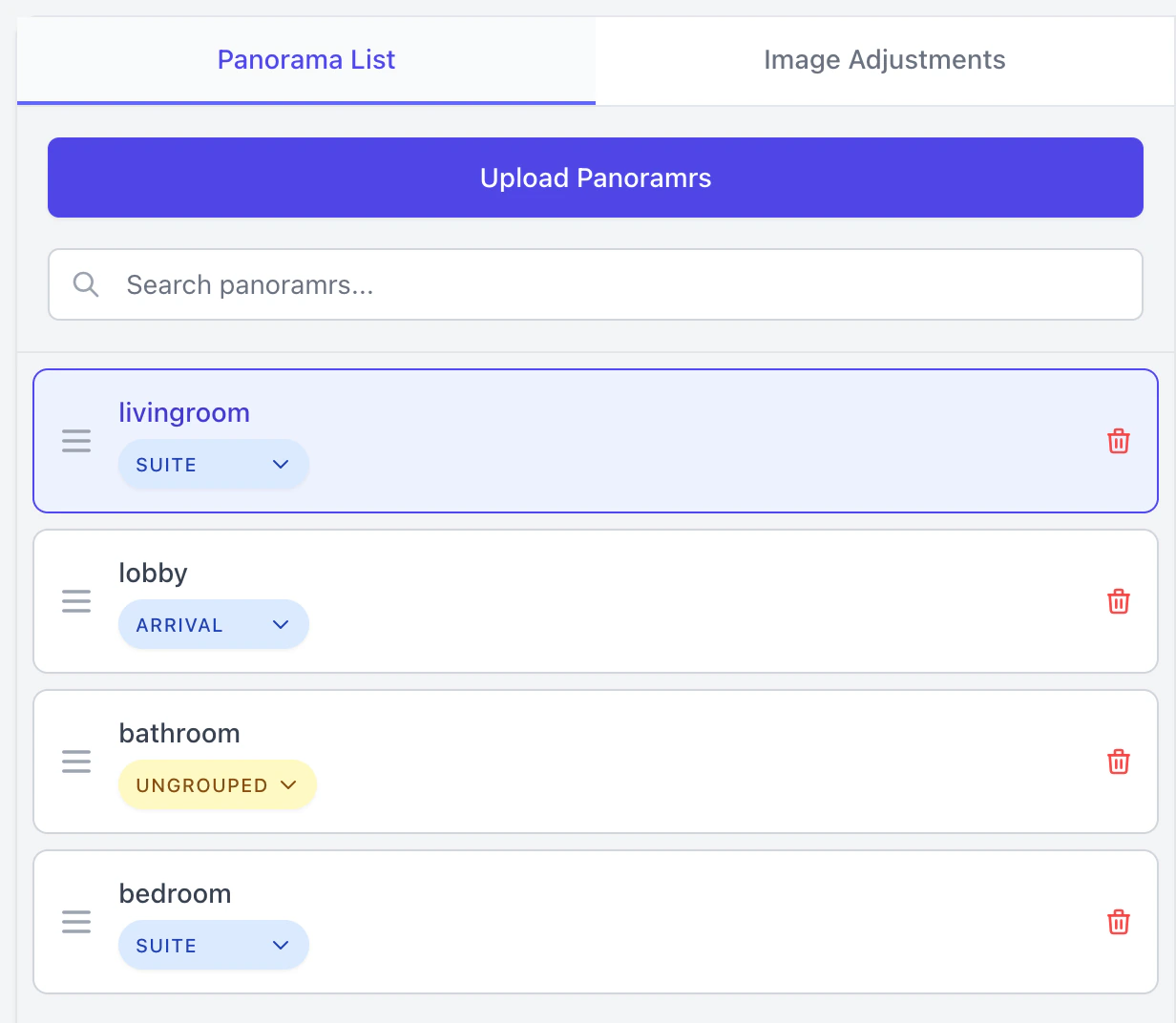
- Open the Panoramrs tab. Once the tour has a group, each scene in Panorama List shows a pill that reads
Ungroupedor the scene's group. Click the pill and choose. - Or select a scene and use Group Selection under the picture: choose a group from its list, or type a new name. It saves when you choose or leave the box, and
Saved automatically.appears. A new name joins the tour's groups only when the person typing it can save the Settings tab (the owner, and Admins by default). For an Editor the scene is put in the group but the name is not added to Panorama Groups: ask the owner to add it, or it comes after the listed groups, in alphabetical order.
Once the tour has two groups, a list beside the search box in Panorama List shows one group at a time: choose a group, Ungrouped for the scenes in none, or All categories. It works together with the search. While the list shows one group, or a search, scenes cannot be dragged into a new order.
A group belongs to the tour. Another tour that uses the same panorama has its own groups.
Show the groups to visitors
- Open the Design tab and click Side Nav - List Menu.
- Tick Enable Side Nav - List Menu and Nested Navigation (Categories).
- Click Save & Render.
Visitors get a side menu with one entry for each group, and the scenes with no group under the ungrouped label. With Nested Navigation (Categories) off, the same menu is a flat list of scenes. Position puts it on the left or the right, and Default to Open starts it open on windows 768 px wide or wider.
Sidebar Style shows only after you click Advanced:
- Flyout Menu is the default. On a desktop, pointing at a group opens its scenes in a panel beside the menu.
- Nested / Accordion opens the scenes under the group.
- Single Page replaces the menu with the group's scenes and a
Main Menubutton to go back.
Under 768 px wide, Flyout Menu works like Nested / Accordion.
The groups also feed Group by Categories in the Advanced-only Media Window panel, for its room pictures and for its room list, and Fill from categories in the menu builder of the Top Nav Bar - Multi Menu (how to build it).
Does it reach visitors?
Creating, renaming and removing groups, putting scenes in them, and Save & Render all refresh the stored copy of the tour that visitors get, unless the tour has Draft Workflows on: then nothing reaches them until you click Publish Changes. See My changes do not show for visitors and Hold back edits until you publish them.
Troubleshooting
Visitors see no groups. Check, in order: Enable Side Nav - List Menu and Nested Navigation (Categories) are both ticked and saved; scenes are in groups; the stored copy was refreshed.
Visitors see one folder, called Other Panoramas or whatever you named the ungrouped label. No scene has a group yet, so all of them are ungrouped. Put scenes in groups.
A group is missing from the side menu. It has no scenes, or its scenes lie beyond the limit on published scenes. See Why can't I publish my tour?.
The label for ungrouped scenes did not change. Click Save Properties on the Settings tab (in the Advanced view).
The pill is not on my scenes. It shows once the tour has at least one group in Panorama Groups. Until then a scene that has a group shows its name as plain text, and a scene without one shows nothing.
There is no box to add a group. Editing: is set to a language other than English (Default).
Next steps
Was this article helpful?