Upload and manage files in the Asset Library
Upload, rename, organize, replace and delete files in the Asset Library and in a tour's Assets tab, and see what counts against your plan's storage.
Reference8 min read Updated
On this page
The short answer
The Asset Library holds the files you use around your tours: images, videos, audio and documents, plus your panoramas and floor plans. Open it from your name menu at the top right (Asset Library). Each tour also has an Assets tab for the files uploaded to that tour (in the Advanced view).
Files take room from your plan's library storage. A Vault that is running adds room to the library (500 MB for Vault 10 up to 5 GB for Vault 250) and raises the one-file limit when its own is bigger (25 MB to 50 MB): see Vault hosting. Panoramas follow the panorama limits instead (Photo requirements).
The two places
| Asset Library | A tour's Assets tab | |
|---|---|---|
| Shows | All your files, panoramas and floor plans, with Folders and a Trash tab | The files uploaded to this tour, and its floor plans |
| Add | Upload Media for files, Add Panoramr for 360° panoramas | Upload Assets |
| Who can use it | You | The owner, and Editors and Admins by default (what each tab does) |
The library's tabs, each with a count, are All Media, Panoramrs, Images, Videos and Audio, then Documents, Icons and Floor Plans once you have some, and Trash. Use Search assets..., the folder list and the sort list (Newest, Oldest, Name (A-Z), Name (Z-A), Largest, Smallest).
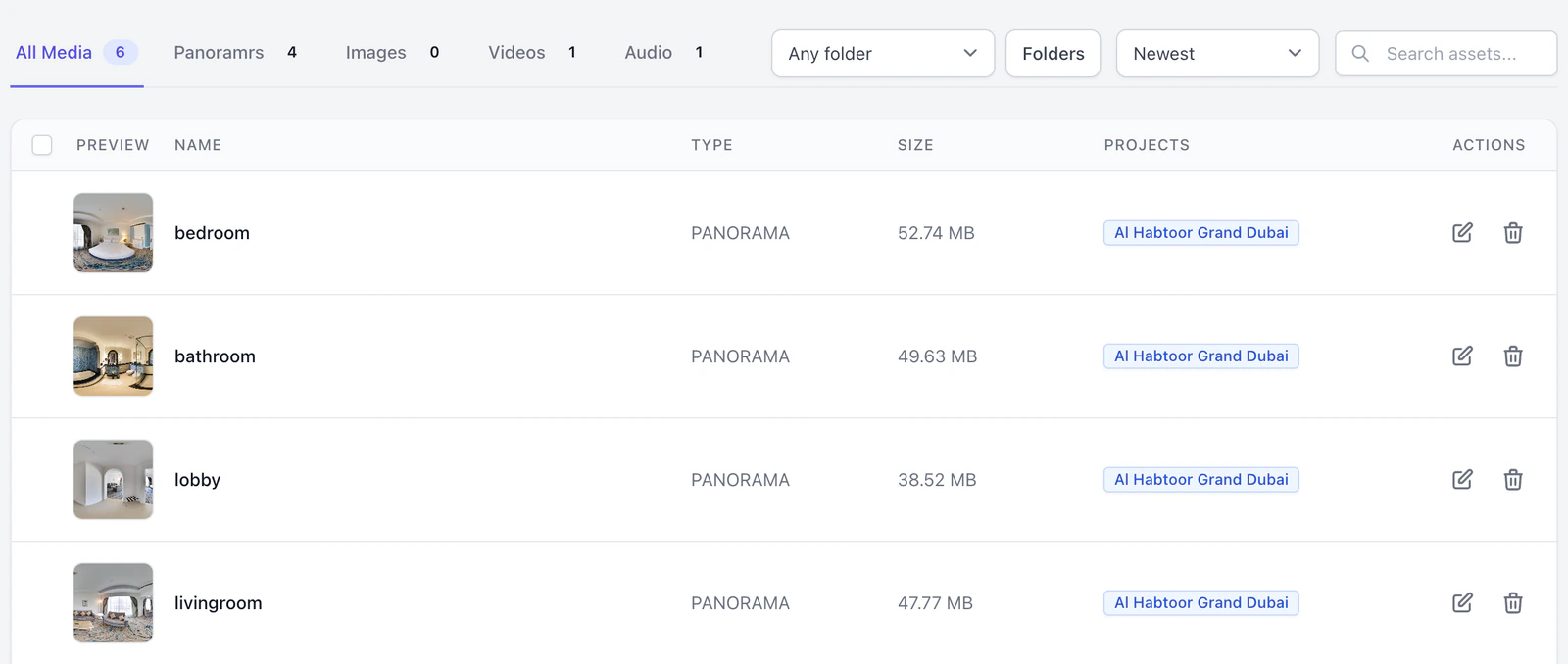
Upload files
- Click Upload Media (on a tour's tab, Upload Assets) and choose files. The upload starts at once.
- A banner reports
N asset(s) uploaded successfully.for about three seconds (below 768 pixels wide it reads onlySuccess!). If you already had a file with the same content, it is kept and the banner addsAlready in your library: "a.pdf" (as "b.pdf").
The library takes .jpg, .jpeg, .png, .webp, .svg, .gif, .mp4, .mp3, .wav, .pdf, .txt, .doc, .docx, .xls and .xlsx, judged by what the file is, not by its name. If one file of a batch cannot be taken, none is kept.
| Limit | Value |
|---|---|
| Files in one upload | 20 |
| One file | 10 MB on Free, 50 MB on Pro, 50 MB on Agency, 50 MB on Enterprise |
| A picture | Up to 80 megapixels |
| Library storage | 250 MB on Free, 2 GB on Pro, 10 GB on Agency, none on Enterprise |
| Upload requests | 20 a minute and 200 an hour for each person |
What happens to a file:
- A picture (JPEG, PNG, WebP or a GIF that is not animated) is saved as a WebP, at most 2,000 pixels wide or tall. The original is not kept, and the name ends in
.webp. - An SVG is cleaned of scripts and links to other sites, and is kept as an SVG.
- An animated GIF, a video, audio and a document are kept as they came.
What counts against library storage
The bar at the top of the page reads Library storage, with the amount used, and turns amber from 70% and red from 90%. It counts your files, the files in the Trash and the older versions of replaced files. Panoramas and floor plans are not in it. Space comes back when a file is deleted for good, not when it goes to the Trash. A file that a collaborator uploads to your tour counts against your plan, not theirs. At 90% the bar adds Almost full. Delete files you no longer need (and empty the trash), or upgrade your plan.
Find, rename and organize
- Rename. Click the pencil on a row (tooltip
Edit Name), type, and press Enter to save or Esc to cancel. A new name does not change the file's address. - Folders (on the Asset Library page). Click Folders, type a name under
New folder nameand click Add folder. A folder holds files only, one level deep, with a name of up to 100 characters and no slash. Tick files and use Move to put them in a folder or take them out. A folder can be deleted only when nothing is left in it, the Trash included. - Panoramas and floor plans. Click a panorama's name to open its page. Its row lists the tours that use it, or
Shared on ApporUnused. A floor plan opens in its tour's Floor Plans tab.
A file's details
Click a file's name (on a tour's Assets tab, the Details icon) to open its details: Type, Size in pixels, File size, Uploaded as, Added, and its Address with a Copy button. You can change the Name, the Alt text, the Caption and the Folder (only the owner), then click Save changes. Used in lists the places that use it: a hotspot, a floor plan, a logo or a saved design.
Alt text is what the picture shows, for people who cannot see it. The picture in an info hotspot uses it when that picture is one of your library files, and otherwise the hotspot's title. A published tour gets the words after its stored copy is refreshed.
Replace a file
- In the file's details, under Replace the file, click Replace file and choose another file of the same kind: a picture for a picture, a video for a video, a sound for a sound, a document for a document. An icon cannot be replaced this way.
- Confirm
Replace this file? Everything in your tours that shows it gets the new file. The current file is kept as a version, so this can be undone.
The name, alt text, caption and folder stay. The file gets a new address, and the places listed under Used in (hotspot pictures, logos, floor plan images) are changed to it. The old file is kept as a numbered version: the last five are kept, count against your storage, and can be put back with Restore (the file it replaces becomes a version) or removed with Delete. A replacement needs room for the whole new file on top of what the library already holds, because the old file stays as a version. A saved design that uses the file is listed under Used in but is not changed: if you bring that design back later, it still points at the old file, which is gone once five newer versions exist.
A tour that is already published keeps showing the old file until its stored copy is refreshed (my changes do not show). Do that soon: an old version is removed once five newer ones exist.
Use a file in a tour
- In the Hotspots tab, a Browse button beside a media field opens a picker (Select an image, Select an audio file, Select a video or Select a file). It lists this tour's files first, marked This tour, then the rest of your library, with a search box and Upload new. A file uploaded there goes into the tour and is chosen at once.
- Logos on the Design tab, for the Top Nav Bar - Multi Menu and the Side Nav - List Menu, use Select Brand Logo.
- Anywhere that takes an address, paste the file's Address.
Delete and restore
The trash icon on a row (tooltip Delete Asset) opens Delete Media, which lists where the file is used, and Move to Trash puts it in the Trash tab for 30 days. On a tour's Assets tab the same icon asks Are you sure you want to delete this asset?, or opens Delete Asset Warning with Confirm Delete when a tour uses the file, and the file waits in the Trash (Deleted Assets) accordion. A file that a tour uses keeps showing there while it is in the Trash. Restore puts it back. Perm Delete deletes it for good; if a tour still uses the file, the question names those places first. Deleting tours, panoramas and files has the whole picture.
Troubleshooting
Upload problems show in a red box above the tabs until you dismiss it.
| You see | What it means |
|---|---|
Choose at most N files at a time. You chose M. |
Choose fewer files per upload. |
"name" is not a file the library takes. It takes .jpg, ... |
The type is not in the list above. |
"name" is N MB, over the M MB limit for one file. |
Your plan's limit for one file. |
Library Storage Full: Your plan includes ... |
The upload would pass your storage. A replacement counts in full on top of the old file, which stays as a version. Delete files, empty the Trash or delete old versions with Delete, or upgrade. |
name: this picture is W x H (N megapixels) and the library takes up to M. A 360° panorama belongs on the Panoramas tab. |
Add 360° photos with Add Panoramr, not Upload Media. |
name: we could not read this picture. Export it again as a JPEG, PNG or WebP and try again. |
The picture is damaged or in another format. |
name: its name carries the extension .php, which is not allowed |
Rename the file: a name with a script extension after its first dot is refused. |
| The page sends you to Check your inbox | Your account is held for an unconfirmed email address, and uploads are among what is held (sign up and verify). |
| Renaming, replacing or deleting gives a 403 | The file is not yours, or your role has no Assets tab. Floor plans belong to the tour's owner. |
Next steps
Was this article helpful?