Choose a look for your tour: themes and My Designs
Apply a theme to a tour, save a finished design to My Designs, apply it to your other tours, and go back with Undo history.
Guide9 min read Updated
On this page
The short answer
Open the tour's Design tab (in the Advanced view), stay on Themes and click Apply on a theme. The theme's look is copied into the tour once, and you can keep changing it afterwards. To reuse a finished design on other tours, save it under My Designs (it needs a paid plan) and apply it from there.
Who can do it
- The owner, and a collaborator whose role includes the Design tab. By default that is an Admin: an Editor or a Viewer has no Design tab. Save & Render also needs the Settings tab in the role.
- Any plan can apply any theme, to try it and to design with it. The tag PRO or FREE on a card says whether visitors see the theme: a Pro theme shows to visitors only when the tour is hosted or its owner is on a paid plan (see What visitors get).
- Saving a design needs a paid plan on your own account. A Vault does not count.
Apply a theme
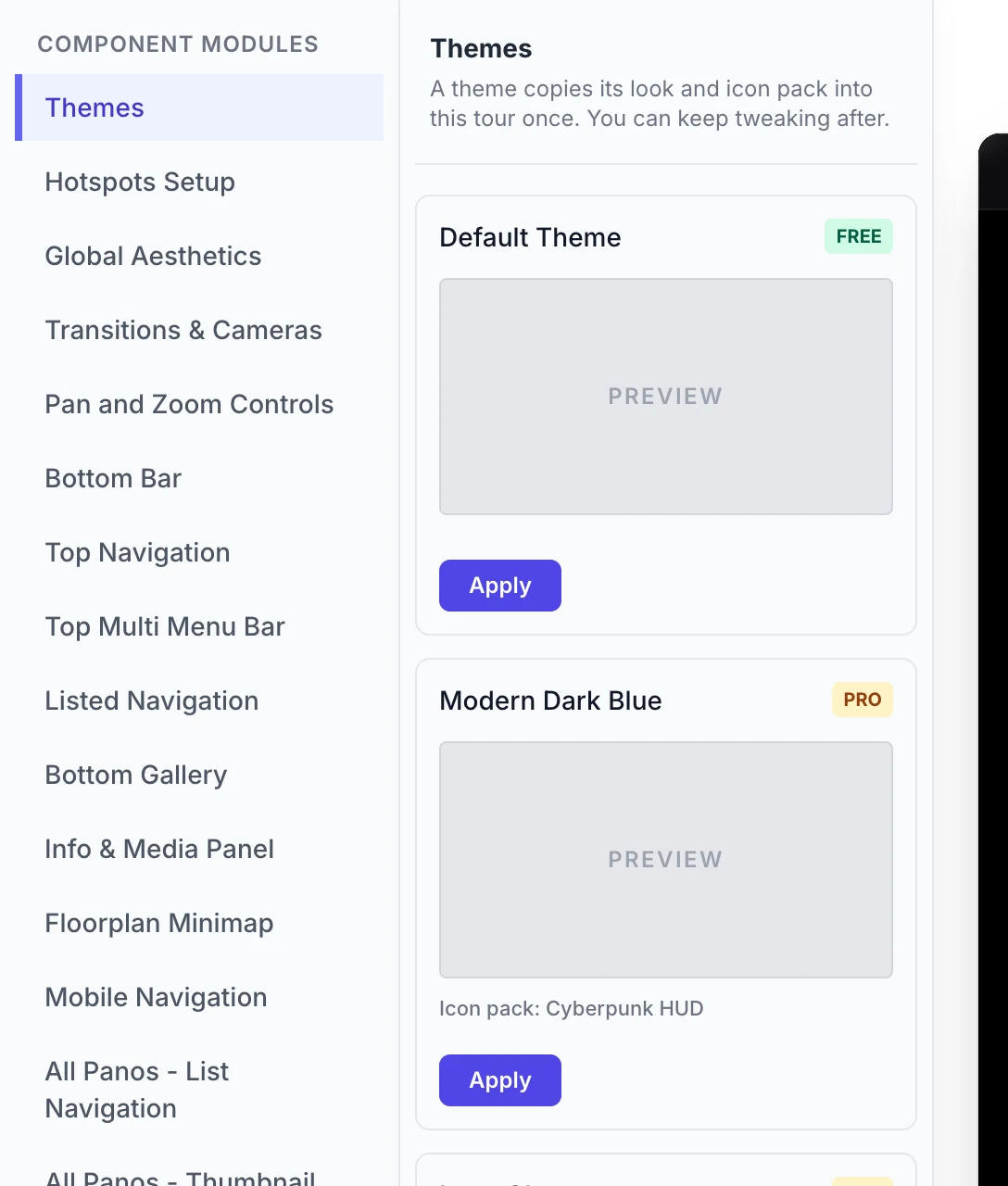
- Open the tour and click the Design tab, then Advanced at the right end of the tab row. Under Component Modules, Themes is the first panel, and it is open when the page loads. (Basic has no Themes panel and opens on Global Aesthetics.)
- Look at the cards. Each has the theme's name, a PRO or FREE tag and a picture of a tour in the theme. A theme with no picture yet has a gray Preview box instead: a placeholder. The theme the tour wears is listed first, then a theme made for your tour's category, the one in Showcase Category on the Publish tab (or on the Tour tab, in the Advanced view).
- Click Apply. It takes effect at once, so you do not need Save & Render. The card reads Applied and
Theme applied.shows at the top of the page for about three seconds (on a narrow screen it reads onlySuccess!). - Change any panel and click Save & Render as usual. Modified from theme appears next to Applied when the saved design no longer matches the theme.
With unsaved changes on the page, it first asks Applying a theme replaces your unsaved design changes. Continue?
Applying a theme replaces the look: any look setting the theme does not set goes back to its default. Later changes to a theme do not reach tours that already used it. Your previous design is copied first (see Undo history and reset).
What a theme carries
A theme or a saved design carries the look: colors, font and glass effect; hotspot look and icon pack; the Top Nav Bar - Dropdown, Icon Bar, Bottom Nav - Thumbnails, Floorplan Minimap and Mobile Navigation settings; the look of Side Nav - List Menu; and the transition style, duration and easing.
A theme can also switch parts of the player on or off. The Averline theme, made for hotels, does: it switches on Side Nav - List Menu with your panorama groups, a place for your logo, its floor plan button and the room pictures of the Media Window, and the Info & Media Panel. A theme that says nothing about these parts leaves them as you have them (every other theme today), and so does Reset to Standard design. A design you save holds these switches as the tour has them, so applying it to another tour sets them there too.
A theme or a saved design can switch the Top Nav Bar - Multi Menu on, and never off. A design saved from a tour whose bar is on does. The bar then shows the tour's own panorama groups and rooms by itself, unless you built a menu of your own, which the tour keeps. The design also holds the bar's Button Style with its options, Uppercase Labels and Lines Between Items.
These always stay as they are:
- logos and pictures (the sidebar logo, the menu bar logo, the Icon Bar's info graphic);
- your panorama groups, every label you typed, and what the Info & Media Panel shows;
- the menu of the Top Nav Bar - Multi Menu, its logo, its button and its colours, and the Media Window's room list;
- view limits and zoom, Autorotate on Idle, the mouse controls and Enable Pan and Zoom Bar;
- Navigation Hotspot Override and Cinematic Intensity.
Save your own design
- Set the tour up and click Save & Render. A saved design copies what is saved, not what is only on screen.
- On Themes (in the Advanced view), under My Designs, type a name in Name this tour's design (up to 100 characters) and click Save.
Design saved to My Designs.shows, and the design joins the list. Only you see your designs.
On a Free plan the box is replaced by Saving your own designs needs a paid plan. Designs saved earlier stay in the list. You can keep 50: after that the message is You have reached the limit of 50 saved designs.
Each design has three actions:
- Apply puts it on this tour, as for a theme.
- Apply to tours… shows only when you own another tour. It lists your other tours, not tours that someone else owns, with a tick box each, under
Apply "Name" to:. Tick some and clickApply to N tours, up to 100 at a time.Applied to N tours.confirms it, and each tour keeps its previous design in its own Undo history. - Delete asks
Delete "Name"? Tours already using it keep their design.
Undo history and reset
Before it applies a theme, resets the design or restores a copy, Panoramr copies the tour's design. The labels read Before applying a theme, Before reset and Before restoring a snapshot. When the tour has any, Undo history lists them under My Designs with the date and time, and Restore puts one back (Design restored.).
- It keeps the newest 10 for each tour. Edits you save with Save & Render are not copied, so it is not an undo for ordinary edits.
- A copy holds all of the tour's saved settings, not only the look. Restoring also puts back what changed since, such as logos, the menu bar, tour languages, groups, and the Hide Tripod Cap (Nadir Patch) and Hide Startup Splash Screen boxes.
- A restore is copied first, so you can undo it too.
Reset to Standard design, at the bottom of the panel, removes the look settings and the applied theme (Design reset.). The settings a theme does not carry stay: see What a theme carries.
See a theme before you apply it
On your Dashboard click Design. The page is called Design Hub & Styleguide. Its Themes tab lists the themes, with your saved designs among them, and Preview Live Tour shows one on your most recently edited tour without saving anything. It cannot apply a theme: do that on the tour's Design tab. The other tabs (Overview, Hotspots & Icons, Design Sandbox) are for icon packs and custom icons: see Hotspot looks and presets.
The Settings tab also has a Tour Theme list. It chooses the layout the player page is built from and copies no colors or icons: use the Design tab to restyle. Applying a theme or a saved design also sets the Tour Theme to the layout that theme was made for, and Reset to Standard design sets it back to System Default.
What visitors get
- On a Free plan a tour in a free theme, the Default Theme, shows visitors your design on its public page and in an embed, with the changes you made to it: colors, bars and hotspot looks are yours to change on any plan. A tour in a Pro theme that has never been hosted shows visitors the free Default look instead: the look settings a theme carries go back to their defaults, and the rest stays, the parts of the player a theme switched on among it (see What a theme carries). A free download is the Standard design. A paid plan (Pro, Agency or Enterprise), or a Vault or your plan's hosting that hosts the tour or has hosted it, gives visitors your own design in any theme (when a Vault ends the tour keeps its design and only Panoramr's branding comes back). A download of your own design needs a paid plan: a Vault is hosting, not a download. A design you saved under My Designs counts as a Pro theme here: a tour that wears one shows visitors the free Default look until it is hosted or you are on a paid plan. The Design tab, its preview and the Preview tab always show your design. On the Design tab, a tour in a Pro theme that visitors cannot get also shows a bar,
<theme> is a Pro theme. Visitors, and embeds, see the free Default look until this tour is hosted or you are on a Pro plan., with a link Host this tour that opens the Hosting pane of the Publish tab, and, while the tour may not use Pro themes in public, every PRO card in the Themes panel saysFor preview only on this tour. - Applying, resetting, restoring, applying to other tours and Save & Render refresh the stored copy that visitors get, unless the tour uses Draft Workflows: then nothing reaches them until you click Publish Changes. To see what they get, open the player address inside the Web Embed Code on the Publish tab in a new tab, or the tour's Explore page and click the play button on its picture. My changes do not show for visitors has the rest.
Troubleshooting
My theme shows in the editor but visitors see the free Default look. The theme is a Pro theme (the tag PRO is on its card), the tour has never been hosted and the account is on a Free plan. Choose a free theme, host the tour or move to a paid plan. Otherwise the stored copy was made before your change: click Save & Render (with Draft Workflows, then Publish Changes).
I applied a theme and lost my own changes. Click Restore under Undo history on the tour.
The theme did not change my menu bar, logo or view limits. A theme does not carry them: see What a theme carries.
Apply to tours… is missing. You own no other tour. Undo history is missing. Nothing has been applied, reset or restored on this tour yet.
Next steps
Was this article helpful?