Embed a 360 tour on WordPress, Squarespace or Wix
Copy the Web Embed Code from the Publish tab, paste it into a WordPress, Squarespace or Wix page, and learn what visitors see on a Free plan.
Guide5 min read Updated
On this page
The short answer
Copy the Web Embed Code from the tour's Publish tab and paste it into a block on your page that accepts HTML. The tour must be published. Every plan can embed a published tour. Until the tour is hosted, the embed carries Panoramr's branding, and a tour in a Pro theme shows the free Default look unless its owner is on a paid plan; put the tour in a Vault or in your plan's hosting to remove the branding.
Before you start
- The tour must be published. A private tour shows a page with
Tour not publishedandThis tour is private: its owner has not published it.to everyone except its owner and its collaborators while they are signed in. A hosted tour is published when Published is ticked on the Hosting pane of the Publish tab. Share a tour has the steps to publish. - Hosting decides the branding. An embed of a tour that is not hosted shows Panoramr's start screen and the round badge on the floor; hosting in a Vault or in your plan takes them off. The card says so under the code.
- Your plan and the tour's theme decide the design. A tour in a free theme, the Default Theme, shows the design you made. A tour in a Pro theme shows the free Default look, with the tour's own groups and labels, unless the owner is on a paid plan (Pro, Agency or Enterprise; see Plans, prices and limits) or the tour is, or was, in a Vault or in your plan's hosting. A box on the card names the theme when that is the case.
- Who can open the tab. The owner, and by default a collaborator with the Admin role. An Admin can copy the code and tick the two boxes under it; only the owner can publish the tour or change its hosting (an Admin who tries gets
Only the tour owner can change this setting.).
Get the code
- Open the tour and click the Publish tab. The Overview pane opens first.
- Find the card Web Embed Code. It holds one line of HTML.
- Click Copy. The button reads Copied! for two seconds. If nothing arrives when you paste, click inside the code box, which selects all of it, and copy it yourself.
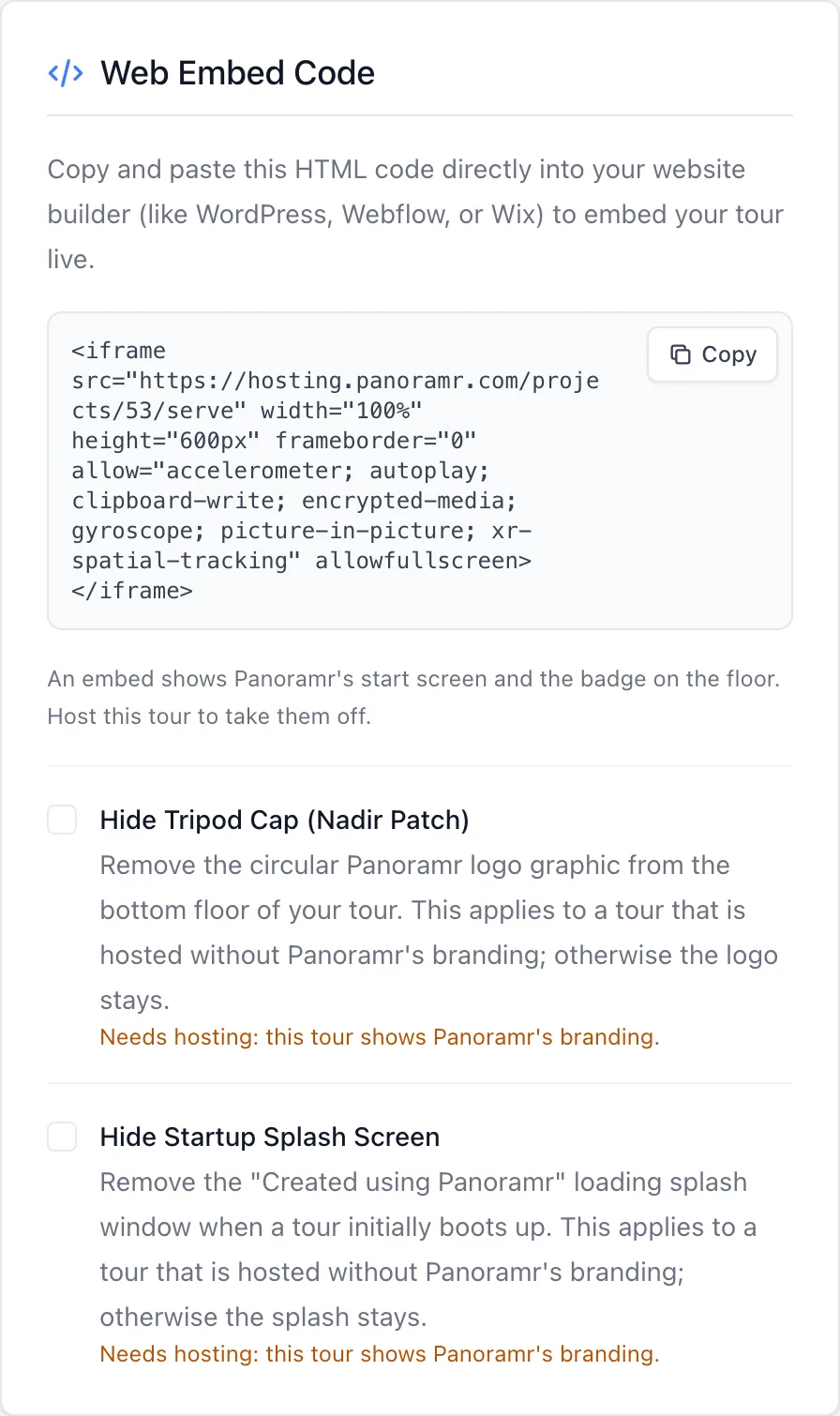
The code is the same for every tour except the tour's number and its name in title, which is what a screen reader says for the frame on your page:
<iframe src="https://hosting.panoramr.com/projects/<number>/serve" title="<your tour's name>, 360° virtual tour" width="100%" height="600px" frameborder="0" allow="accelerometer; autoplay; clipboard-write; encrypted-media; gyroscope; picture-in-picture; xr-spatial-tracking" allowfullscreen></iframe>
An iframe is a frame that shows another page inside yours. This one shows the tour's player, which Panoramr serves from hosting.panoramr.com.
Paste it into your page
Add a block or element on your page that accepts HTML (a builder may call it Custom HTML, Code or Embed), paste the code into it and publish the page. How to add such a block is in your builder's own help; we do not describe other companies' screens. Open the published page to check it.
Size and options
- The code makes the frame as wide as the space your page gives it (
width="100%") and 600 pixels tall (height="600px"). Change600pxto the height you want. - Keep
allowfullscreenin the code. - The code carries an
allowlist, the same one Panoramr's own Explore page uses, and Fix embed problems lists it too. Keep it when you paste. - Two boxes sit under the code and save as soon as you tick them: Hide Tripod Cap (Nadir Patch) and Hide Startup Splash Screen. They apply to a tour that is hosted in a Vault or in your plan. On any other tour they are grey, with
Needs hosting: this tour shows Panoramr's branding.under each, and the Basic view leaves them out until the tour is hosted; see Remove Panoramr branding.
What visitors see
- The player, with all the tour's scenes.
- Panoramr's branding, unless the tour is hosted: see Remove Panoramr branding.
- On a Free plan, the design you made when the tour is in a free theme, and the free Default look when it is in a Pro theme.
- The stored copy of the tour, which can be up to 30 days old after some edits: see My changes do not show for visitors.
- A visit through your website counts as a view: see Tour analytics.
Troubleshooting
The frame shows Tour not published. The tour is private, and only its owner can change that. Tick Publish to Global Showcase on the Overview pane (this lists the tour on Explore and on your creator profile) and click Save Settings, or put the tour in a Vault or in your plan's hosting and tick Published on the Hosting pane of the Publish tab, which lets you embed it without listing it.
The frame shows the tour, but not in the theme I chose. The tour is in a Pro theme, it has never been hosted, and its owner is on the Free plan. Choose the Default Theme on the Design tab, or put the tour in a Vault or in your plan's hosting. Fix embed problems has the details.
The two boxes under the code are grey. The tour is not hosted, so it shows Panoramr's branding and there is nothing to hide. Once the tour is in a Vault or in your plan's hosting, reload the page and they work.
The frame is empty, black, too small or shows an old version. See Fix embed problems.
Next steps
Was this article helpful?