Tour media: pictures, videos, sound and documents for the whole tour
Attach pictures, videos, sound and PDFs to the whole tour on the Tour tab, in the Tour media card: what each kind takes, the limits and what visitors see.
Reference9 min read Updated
On this page
Tour media is the card on the Tour tab for the pictures, videos, sound and documents that belong to the whole tour rather than to one room, such as a brochure, a welcome video or background music. Visitors open them from every room, under Whole tour in the Info and media panel, once you switch that panel on in the Design tab. The panel itself is described in The Info & Media Panel.
Who can use it. The card is on the Tour tab for the owner and for the collaborators whose role has the Panoramas tab: by default Editors and Admins (see What each tab does). A Viewer, or a role with the Panoramas tab taken away, does not see it. The card is the same in the Basic and the Advanced view, and on every plan. Video and sound files you upload while adding need a plan that allows media uploads; a file already in your library can be added on any plan.
When visitors get a change. Each change is saved as you make it, and Saved shows for a moment. On a tour without Draft Workflows the published page shows it at once. With Draft Workflows on, visitors get it after Publish changes (My changes do not show for visitors).
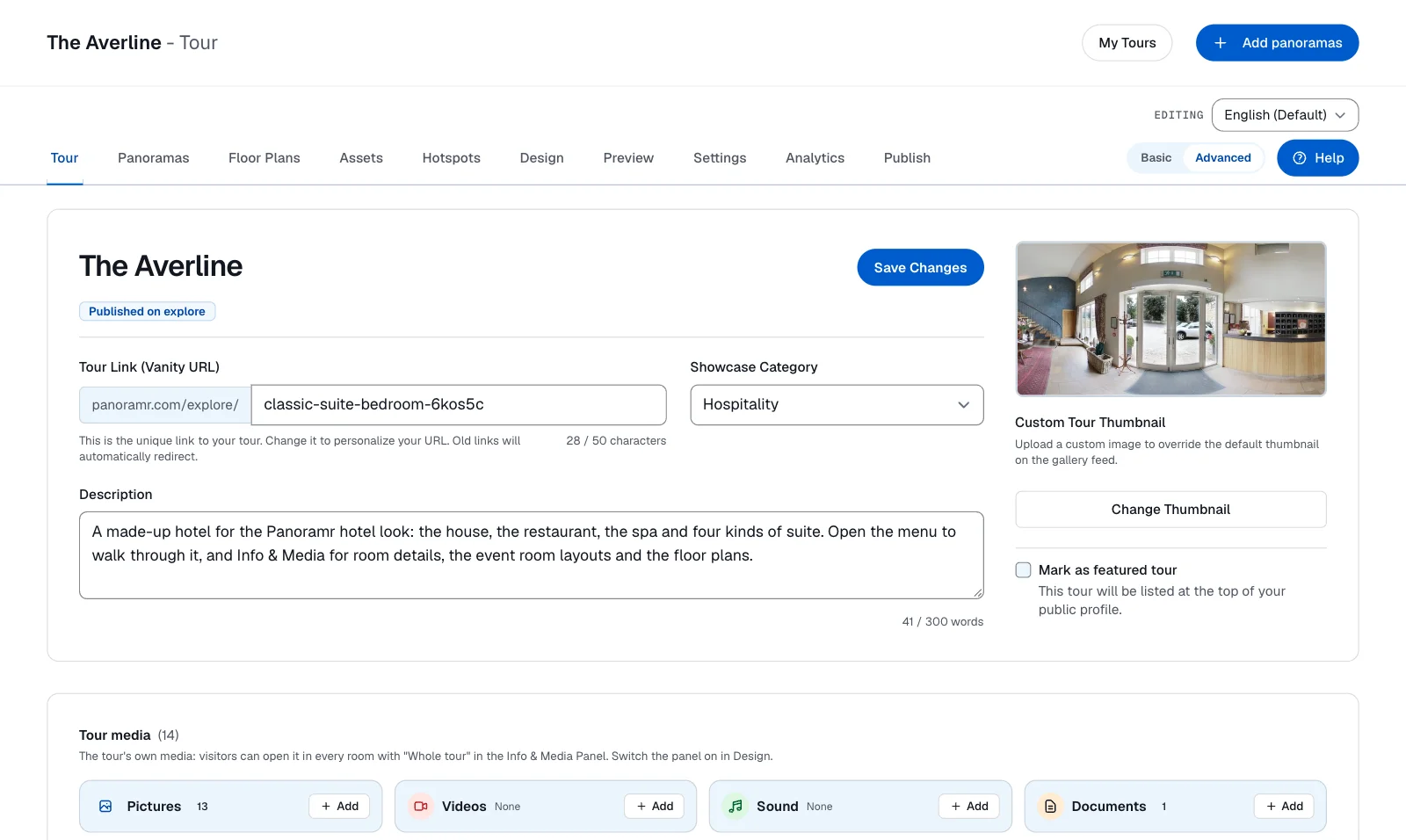
The four kinds
Each kind is a tile with its name, how many items it holds (or None) and an Add button. Press the kind's name to open its items under the tiles; press it again to close them. Only one kind is open at a time. A kind holds up to 50 items: at 50 its Add button is greyed out until you remove one.
Pictures
Pictures for the whole tour, such as a map of the property or a gallery of the building.
Where: the Tour tab (Tour tab), card Tour media, tile Pictures. Basic and Advanced view.
Default: None: a tour starts with no tour media.
What it does: Add (tooltip Add a picture) opens your asset library to choose a picture or upload one. Only pictures are accepted: another file says Choose a picture. Each picture has a name and a caption. The name starts as the file's name.
What visitors see: In the Info and media panel, under Whole tour, in the pictures tab. A visitor opens a picture larger, with its caption.
Needs: The Info and media panel switched on in Design.
Related: Videos, The Asset library.
Videos
Video files and YouTube or Vimeo videos for the whole tour.
Where: the Tour tab (Tour tab), card Tour media, tile Videos. Basic and Advanced view.
Default: None.
What it does: Add (tooltip Add a video file) opens your asset library for an MP4 file; any other file says Choose a video (MP4), or paste a YouTube or Vimeo address. To use a YouTube or Vimeo video instead, paste its address in the box under the tile's name (see Or paste a YouTube or Vimeo address). A video has a name but no caption.
What visitors see: In the video tab of the panel, with a picture of the video that plays when pressed. For a YouTube video the picture is a copy Panoramr keeps, so a visitor's browser asks YouTube for nothing until the video is played.
Needs: The Info and media panel switched on. An MP4 upload needs a plan that allows media uploads.
Related: Embed a video inside a 360 tour.
Sound
Sound for the whole tour, such as a spoken welcome or a piece of music.
Where: the Tour tab (Tour tab), card Tour media, tile Sound. Basic and Advanced view.
Default: None.
What it does: Add (tooltip Add a sound) opens your asset library for an MP3 or WAV file; another file says Choose a sound (MP3 or WAV). A sound has a name but no caption.
What visitors see: In the sound tab of the panel with a player. Sound plays one at a time and stops when the visitor moves to another room or closes the panel.
Needs: The Info and media panel switched on. An upload needs a plan that allows media uploads.
Documents
PDF and text files for the whole tour, such as a brochure, a price list or a floor plan.
Where: the Tour tab (Tour tab), card Tour media, tile Documents. Basic and Advanced view.
Default: None.
What it does: Add (tooltip Add a PDF or text file) opens your asset library for a PDF or a text file; another file says Choose a PDF or a text file. A Word or Excel file is not accepted, because a browser would only download it. Each document has a name and a caption.
What visitors see: In the documents tab of the panel. A document opens in the tour or in a tab of its own, as the panel's PDFs and text files open setting says (Advanced view).
Needs: The Info and media panel switched on.
Related: The Info & Media Panel.
Adding and changing items
Add
Opens your asset library to choose a file for the kind, or to upload one.
Where: the Tour tab (Tour tab), card Tour media, the button at the right of each kind's tile. Basic and Advanced view.
Default: none (a button).
What it does: Opens a window that lists your library files of the right type and lets you upload a new one. The file you choose is added at the end of the kind's list, and the kind opens under the tiles. The files are your own: a file of someone else's library is refused with That file is not in this tour's library. The tour keeps no copy of the file, it names the file in your library, so a file you replace there keeps its place here.
What visitors see: The item at the end of the kind's tab once the change has reached the published page.
Needs: A file in your Asset library, or one you upload in the window.
Related: Or paste a YouTube or Vimeo address.
Or paste a YouTube or Vimeo address
Adds a video that stays on YouTube or Vimeo.
Where: the Tour tab (Tour tab), card Tour media, tile Videos open, the box above the list (placeholder Or paste a YouTube or Vimeo address) and its Add button. Basic and Advanced view.
Default: Empty.
What it does: Takes a youtube.com, youtube-nocookie.com, youtu.be or vimeo.com address of one video. Anything else says Paste the address of a YouTube or Vimeo video. The video is not copied into the library; only its address is kept.
What visitors see: The video in the video tab. It plays from YouTube or Vimeo, so it needs a visitor who can reach them.
Needs: The Videos kind open.
Related: Videos.
Name
The title shown for the item.
Where: the Tour tab (Tour tab), card Tour media, the box at the top of each item. Basic and Advanced view.
Default: The file's name without its extension, up to 200 characters. A YouTube or Vimeo video starts with no name.
What it does: Saves when you leave the box, and Saved shows at the top of the card. It can hold up to 200 characters. Text stays text: the player writes it as typed.
What visitors see: The name under or beside the item in the panel.
Related: Caption (optional).
Caption (optional)
A line of text under a picture or a document.
Where: the Tour tab (Tour tab), card Tour media, the second box of a picture or a document. Basic and Advanced view. Videos and sound have no caption. Default: Empty. What it does: Saves when you leave the box. It can hold up to 2,000 characters. What visitors see: The caption with the picture or document. Related: Name.
Move up
Changes the order of the items of a kind.
Where: the Tour tab (Tour tab), card Tour media, the two arrows at the right of each item, named Move, the item's name and up or down for a screen reader. You can also drag an item onto another of the same kind. Basic and Advanced view.
Default: In the order they were added.
What it does: Moves the item one place; the first item cannot move up and the last cannot move down. The order is saved at once. Items stay inside their kind.
What visitors see: The items in that order in the kind's tab.
Remove
Takes an item out of the tour's media.
Where: the Tour tab (Tour tab), card Tour media, the bin at the right of each item (named Remove and the item's name for a screen reader). It asks nothing before it acts. Basic and Advanced view.
Default: none (a button).
What it does: Removes the item from the tour. The file stays in your asset library.
What visitors see: The item is gone from the panel. An item whose file you deleted from the library stays in the list with the note This file is no longer in the library, so it is not shown. Remove it, or add it again., and visitors do not see it either.
What visitors get
- Where it shows. Under Whole tour in the Info and media panel, and in the Media Window that a Room Info icon opens, where
This roomandWhole tourswitch between the room's items and the tour's. - Downloads. A download of the tour carries the files of the tour's media.
- Files in use. The Asset library lists the tour as a place where a file is used (
tour media: pictures) and links to this card.
Troubleshooting
There is no Tour media card on the Tour tab. Your role has no Panoramas tab. Ask the tour's owner for the Editor or Admin role.
Visitors do not see the media. The Info and media panel is switched off in Design, or the tour uses Draft Workflows and the change is not published yet.
A file is not offered when I add. The window lists only the files of the kind's type: pictures for Pictures, MP4 for Videos, MP3 and WAV for Sound, PDF and text for Documents.
Add is greyed out. The kind holds 50 items. Remove one.
Next steps
Was this article helpful?