What each tab of your account does
The tabs of your account, Panoramr: what each holds, who sees it, where a deleted tour or an invoice is, and why the Hosted or Vaults tab is not there.
Reference23 min read Updated
On this page
- The short answer
- The account header
- At a glance
- Dashboard
- Tours
- Panoramrs
- The Hosted tab
- The Vaults tab
- Asset library
- Design
- Analytics
- My requests
- What each kind of account has
- The account menu
- The My profile page
- Username (Profile URL)
- Name
- Current password
- Save Profile
- Subscription Package
- Manage Billing
- How you sign in
- New Password
- Confirm Password
- Where do I find...?
- Troubleshooting
The short answer
Once you are signed in, your account is one section called Panoramr, with a row of tabs under its heading: Dashboard, Tours, Panoramrs, Hosted, Vaults, Asset library, Design and Analytics, and My requests while the Help service is on. Open it with Dashboard in the site header. Hosted shows only on a paid plan and Vaults only while Vaults are on sale. The other six are on every account.
These tabs are about your whole account. The tour editor has its own row of tabs, some with the same names: see What each tab in the tour editor does.
The account header
Each tab has the same header above its page:
- The title. Panoramr on the Dashboard. On the other tabs, the name of the page: My Tours, My Panoramrs, Hosted, Vaults, Media library, Design, Analytics and My requests.
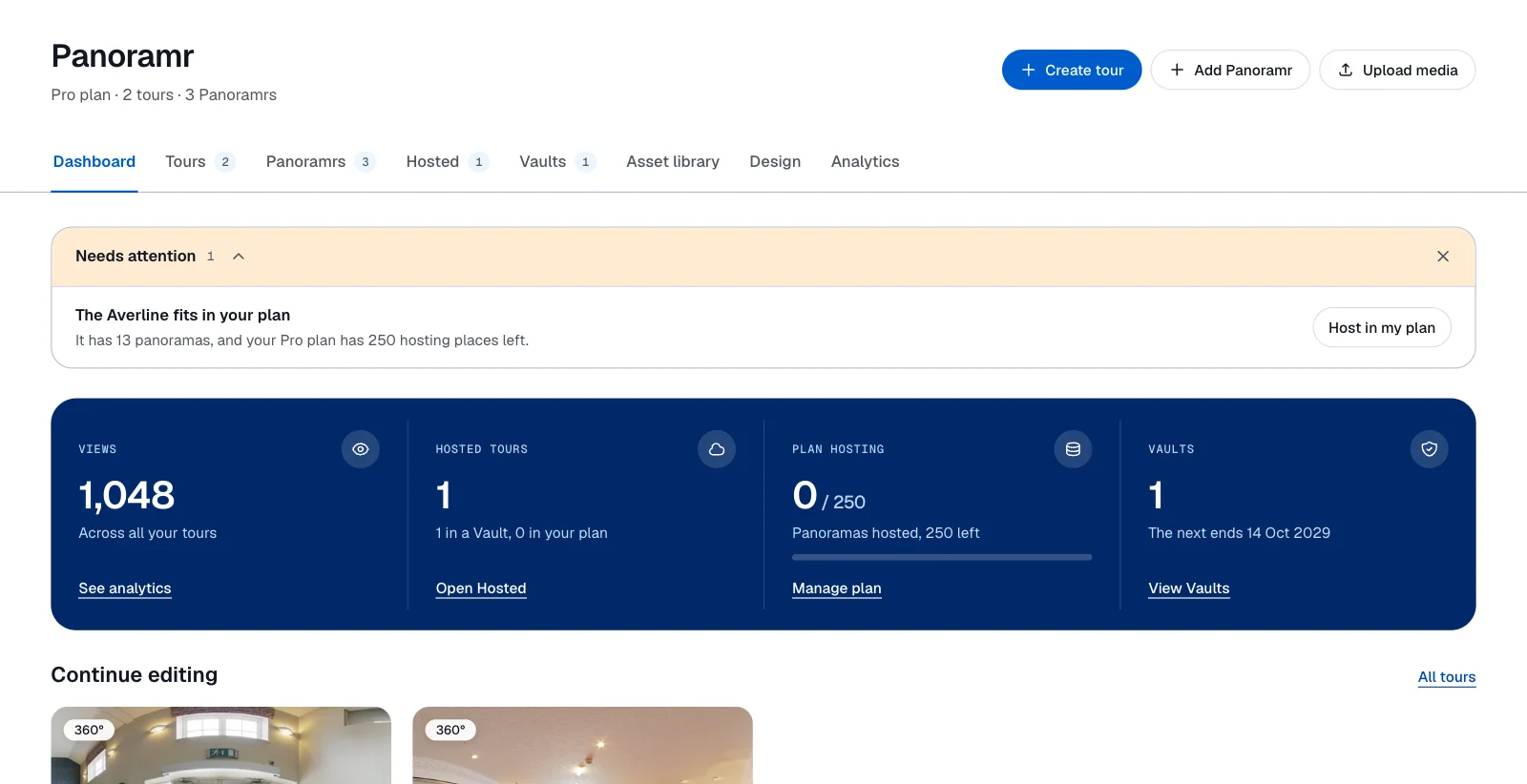
- The line under it. On the Dashboard it is the plan line: your plan's name, then how many tours and how many Panoramrs you have (
2 tours · 3 Panoramrs). On the other tabs it is one sentence about the page. - The buttons at the top right, the blue one first. They are different for each tab (see the sections below). Every tab ends with an outlined Help button: it opens a window with a short video about the tab, and a link to the part of this page about it.
- The tabs. The tab you are on is underlined. Beside Tours, Panoramrs, Hosted and Vaults a small number says how many you have; the other tabs show none. On a narrow window the row scrolls sideways and opens with the tab you are on in view.
Some pages have no account header: My profile, Creator profile, Brands, Client Workspaces, Team, Plan & billing and Pricing & upgrades (the list at the left of My Account; Team is there once team seats are on, and only for the owner and for team members who may invite), Notifications, a tour's editor, Create Tour and the Vault store. Use Dashboard in the site header to get back.
The Basic and Advanced switch belongs to the tour editor. It is not in this header and does not add or remove an account tab.
At a glance
| Tab | Who sees it | Buttons at the top right | What it is for |
|---|---|---|---|
| Dashboard | Every account | Create tour, Add Panoramr, Upload media, Help | What needs a look, four numbers, and the tours and photos to carry on with |
| Tours | Every account | Create tour, Help | Every tour you made or were given, as one table |
| Panoramrs | Every account | Add Panoramr, Help | The single 360° photos you shared on Explore, your profile and the map |
| Hosted | A paid plan | Host a tour, Help | The tours online with your own branding, in your plan or in a Vault |
| Vaults | While Vaults are on sale | Buy a Vault, Help | The hosting you bought, one card for each Vault |
| Asset library | Every account | Add panoramas, Upload media, Help | Your panoramas, pictures, video, audio and documents, and the Trash |
| Design | Every account | Open sandbox, Help | Themes, icon packs and your custom icons |
| Analytics | Every account | Export CSV, Help | Views of all your tours, or of one, by day and country |
| My requests | While the Help service is on | none | What you asked Support, and the replies |
Dashboard
The Dashboard is the overview: what needs a look, four numbers, and the tours and photos you were last working with. The three buttons start things. Create tour opens Create Tour, Add Panoramr opens the page for sharing one 360° photo (Post a 360 photo), and Upload media opens the Asset library page: it does not start an upload, so choose the files there.
From the top:
- A welcome panel (
Welcome! Here is how to make your first tour) with three steps, while you have no tours and none shared with you. - Needs attention, only when something does: a limit of your plan that is full or used 80% or more (Upgrade, or Plan & billing when no bigger plan is on sale), a Vault that ends within 30 days (Renew Vault), a Vault with no tour in it (Choose a tour), or a tour that fits what is left of your plan's hosting (Host in my plan, which opens that tour's Publish tab). Its arrow folds it away. Its cross hides what it lists until something new needs a look. This browser remembers both.
- Four numbers in a dark band: Views across all your tours (See analytics); Hosted tours, how many are in a Vault and how many in your plan (Open Hosted); Plan hosting, the panoramas your plan hosts against its room (Manage plan); and Vaults, how many are running and when the next ends (View Vaults). On a plan that does not host, the second and third link to See plans. The last links to About Vaults while Vaults are not on sale and you have none.
- Continue editing: the four tours edited last, each with its status and an Edit button; All tours opens the list.
- Newest panoramas (your five newest, Open library), Recent Panoramrs (your four newest, All Panoramrs) and Shared with you, which appears only when you have tours that others share with you or that you share with others. Each card there shows a role (
Admin,EditororViewer) orShared, and the button reads Open for a Viewer and Edit for the rest.
Create your first tour in Panoramr describes the Dashboard and the Tours tab in more detail.
Tours
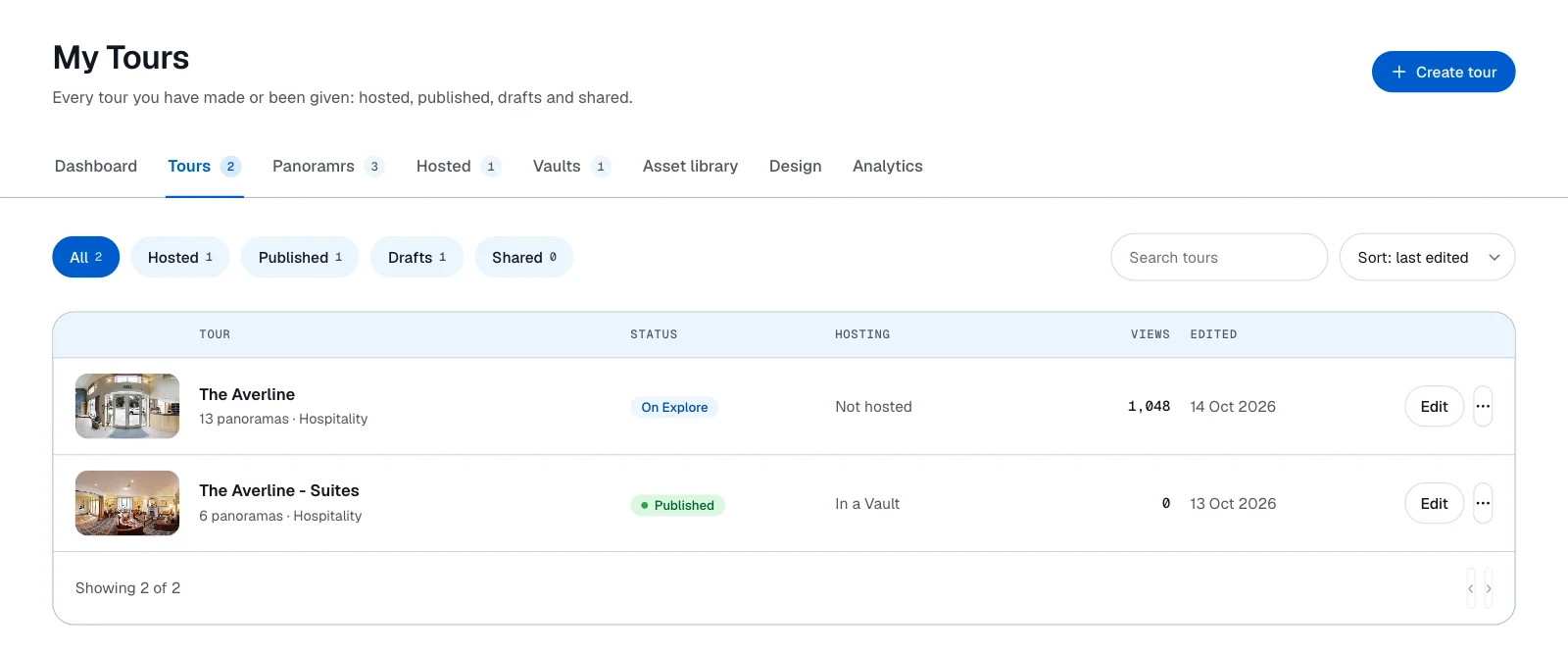
Tours (the page is titled My Tours) lists every tour you can open, yours and the ones shared with you, in one table. The number on the tab counts the tours you own.
- Chips with a count: All, Hosted, Published, Drafts and Shared. Hosted holds the tours in a Vault or in your plan. Published holds the tours that anybody with the link can open: their status reads
Published, orOn Explorefor a tour listed on Explore. Drafts holds your own tours whose status readsDraft. A tour whose status readsNot published,OfflineorOn holdis under neither. Shared holds the tours others shared with you and your own tours that have collaborators; a tour of yours that is shared reads Shared by you under its name. - Search tours looks in a tour's name and category. The sort list reads
Sort: last edited,Sort: most viewsorSort: name. Ten tours show on a page. - Columns: Tour, Status, Hosting, Views and Edited. From 1,280 pixels wide all of them are columns. Below that the hosting is added to the line under the name, and below 1,024 pixels the status chip sits under the name, the views are added to that line and the date is not shown. The status is one of
Draft,Published,On Explore,Not published,Shared, andOfflineorOn holdwhen our team has taken a tour down. The hosting isNot hosted,In a Vault,Hosted,In your planorShared with you. - Edit opens the tour in the editor. The three-dot menu at the end of the row has Hotspots, Settings and Publish, each a tab of that tour.
Deleted tours are not in this table: they are in the Trash of the Asset library tab.
Panoramrs
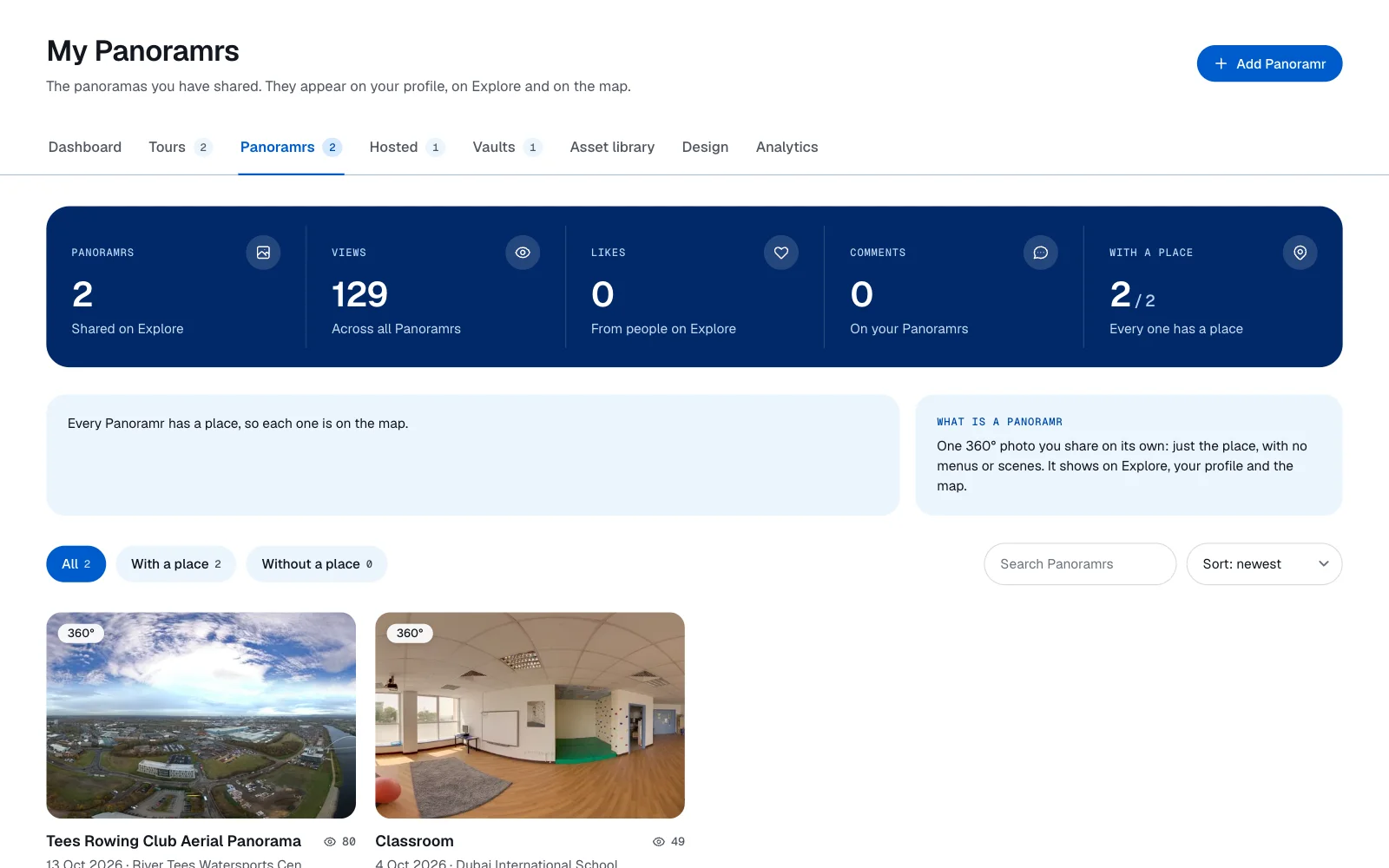
Panoramrs (the page is titled My Panoramrs) is where you manage the Panoramrs you posted. A Panoramr is one 360° photo that you share on its own, with no menus or scenes (on a paid plan, where Panoramr's team has switched it on, one Panoramr can hold several photos): it shows on Explore, on your profile and on the map. A tour's Panoramas tab in the editor is another thing: it lists the scenes of one tour.
- A dark band with Panoramrs, Views, Likes, Comments and With a place, once you have posted one.
- A banner when some have no place (
3 Panoramrs have no place) with Add places, which lists the ones Without a place. A box beside it, headed What is a Panoramr, says what a Panoramr is. - Chips All, With a place and Without a place, Search Panoramrs, and a sort of
Sort: newestorSort: most views. - One card for each Panoramr, with its title, date, place and views, and Edit, View and Delete. 24 show at a time and more load as you scroll.
With none yet, the tab says No Panoramrs yet. Post a 360 photo to Explore has the whole page.
The Hosted tab
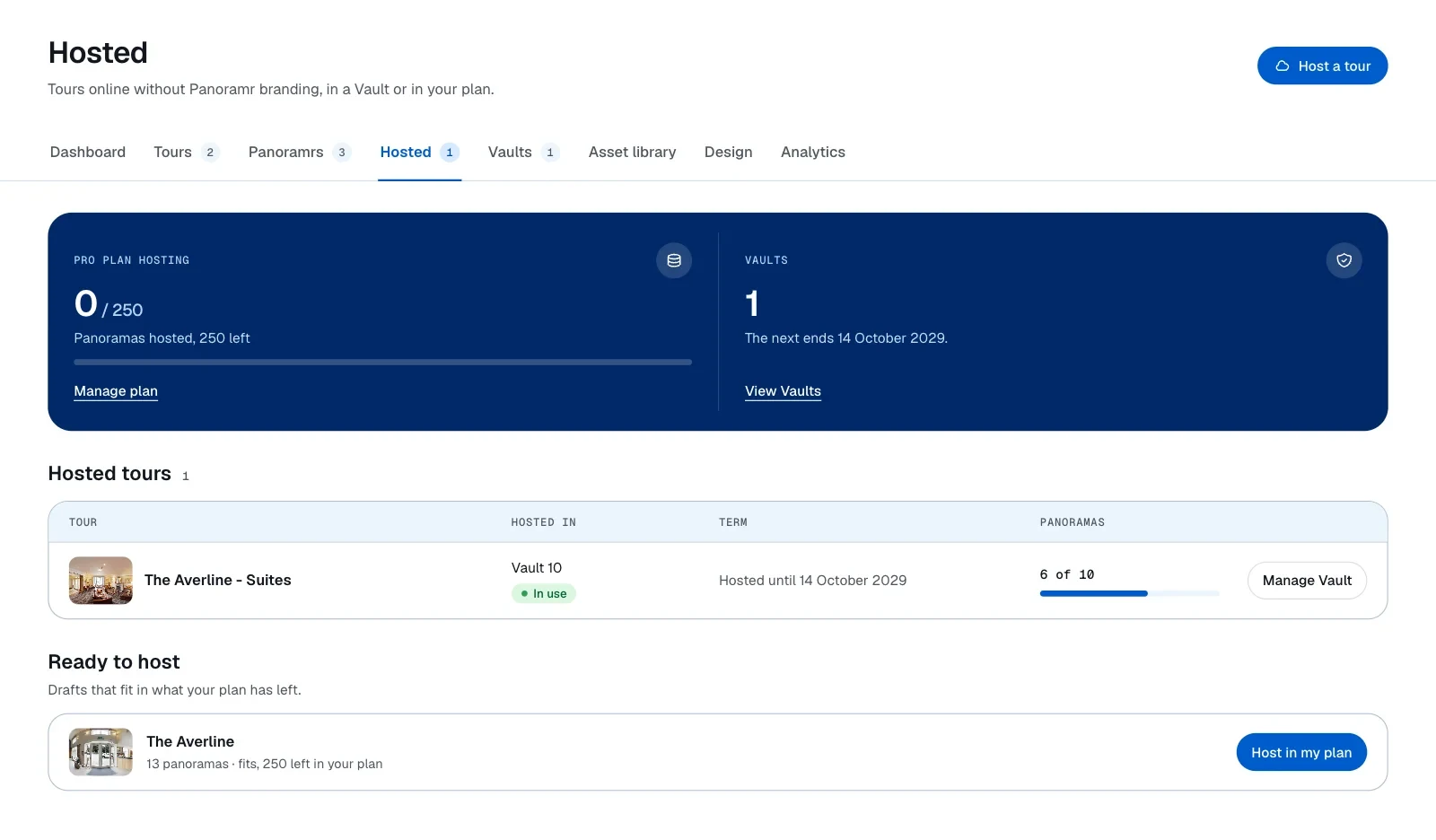
Hosted shows the tours that are online with your own branding, and how much of your plan's hosting they use. The tab is for the paid plans (Pro, Agency and Enterprise). A Free account does not have it and is sent to the Dashboard instead.
The page has a dark band with your plan's hosting (N / M, how many panoramas are left, a bar and Manage plan) and your Vaults (View Vaults); a table Hosted tours with the columns Tour, Hosted in, Term and Panoramas and one button for each tour (Manage Vault or Renew for a Vault, which opens the Vault's page; Settings or Publish for a tour in your plan, both of which open that tour's Publish tab); and Ready to host, the tours that fit what your plan has left, each with Host in my plan, which opens that tour's Publish tab and does not host the tour by itself (Host a tour in your plan). Host a tour at the top right jumps to Ready to host. With nothing hosted the page says No tours are hosted yet.
Plan & billing (your plan, What you use, the plans, your payment card, your billing details and your payments with an invoice link for each) and Pricing & upgrades (the plans to choose from, and the Vaults while they are on sale; if you already pay for a plan it opens Plan & billing instead) are not part of this tab: they are in the list at the left of My Account.
Free publishing, plan hosting or a Vault describes the tab. Invoices, billing history and your card and Upgrade, downgrade or cancel describe those two pages.
The Vaults tab
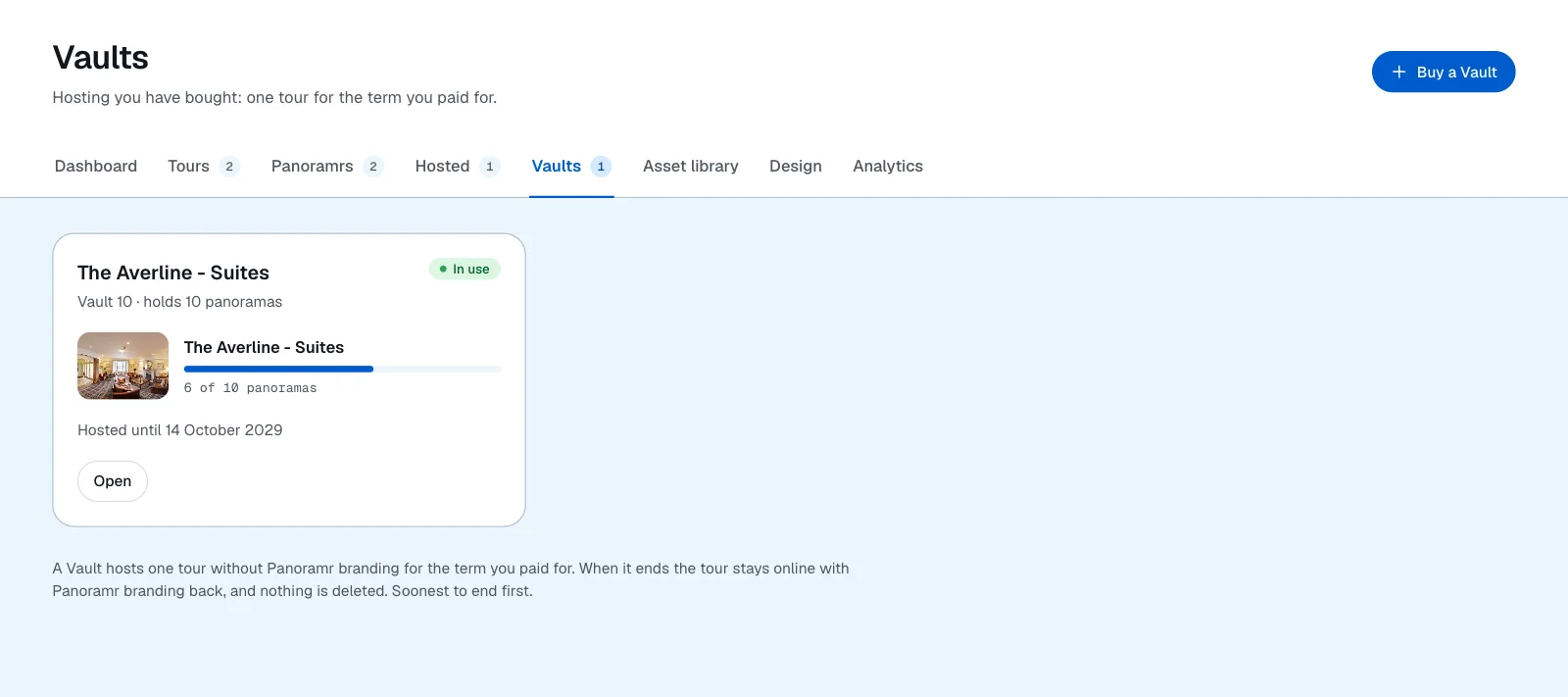
Vaults lists the hosting you have bought: one tour, for the term you paid for. The tab is there while Vaults are on sale. Its button Buy a Vault opens the store.
- One card for each Vault, the soonest to end first, with its name and size (
holds 10 panoramas), a status chip, the tour it hosts with a bar of how full it is (or Choose a tour when it is empty), the date it ends or renews, Open, and Renew when it is ending soon. - A banner when a Vault ends within 30 days, with Renew Vault.
- With none, the tab says
You have no Vaults yetand offers Buy a Vault (while Vaults are on sale) and About Vaults.
Vault hosting explains what a Vault is, and What happens when a Vault ends what comes after.
Asset library
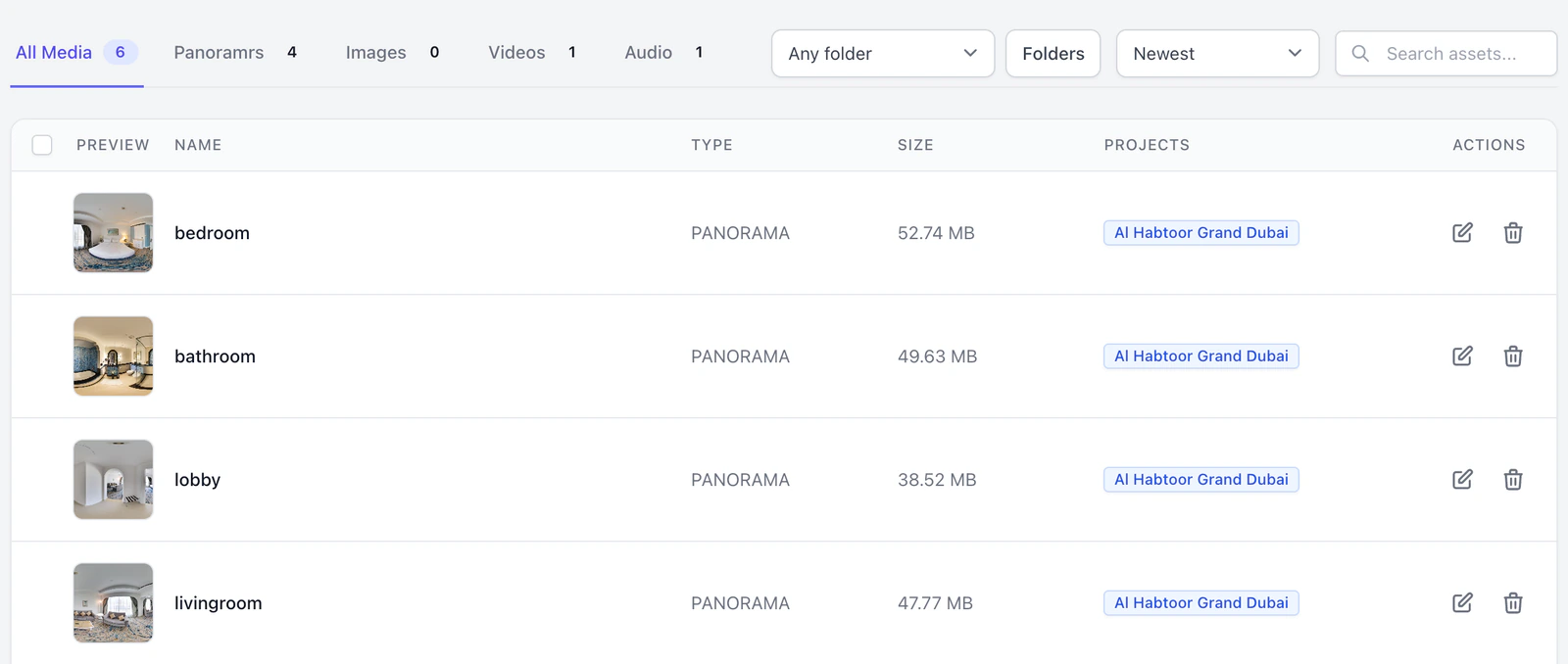
Asset library holds your panoramas, pictures, video, audio, documents and floor plans, whether or not a tour uses them. The page is titled Media library.
- Two buttons. Upload media adds files. Add panoramas here opens the Add Panorama window and puts 360° photos in your library; it does not post them as a Panoramr.
- Storage, a box at the top, says how much of your plan's library storage you use (
1.2 GB of 2 GB used). The Trash is included: its files count until they are deleted for good. A plan with no library limit readsLibrary storage: 1.2 GB used, no limit on your plan. - Chips All media, Panoramas, Images, Videos and Audio, then Documents, Icons and Floor plans once you have some, and Trash. With Search the library, a sort list, Any tour and Any folder, and Folders.
- Trash holds Deleted tours and Deleted media, each with Restore and Delete for good.
Upload and manage files in the Asset Library has the details.
Design
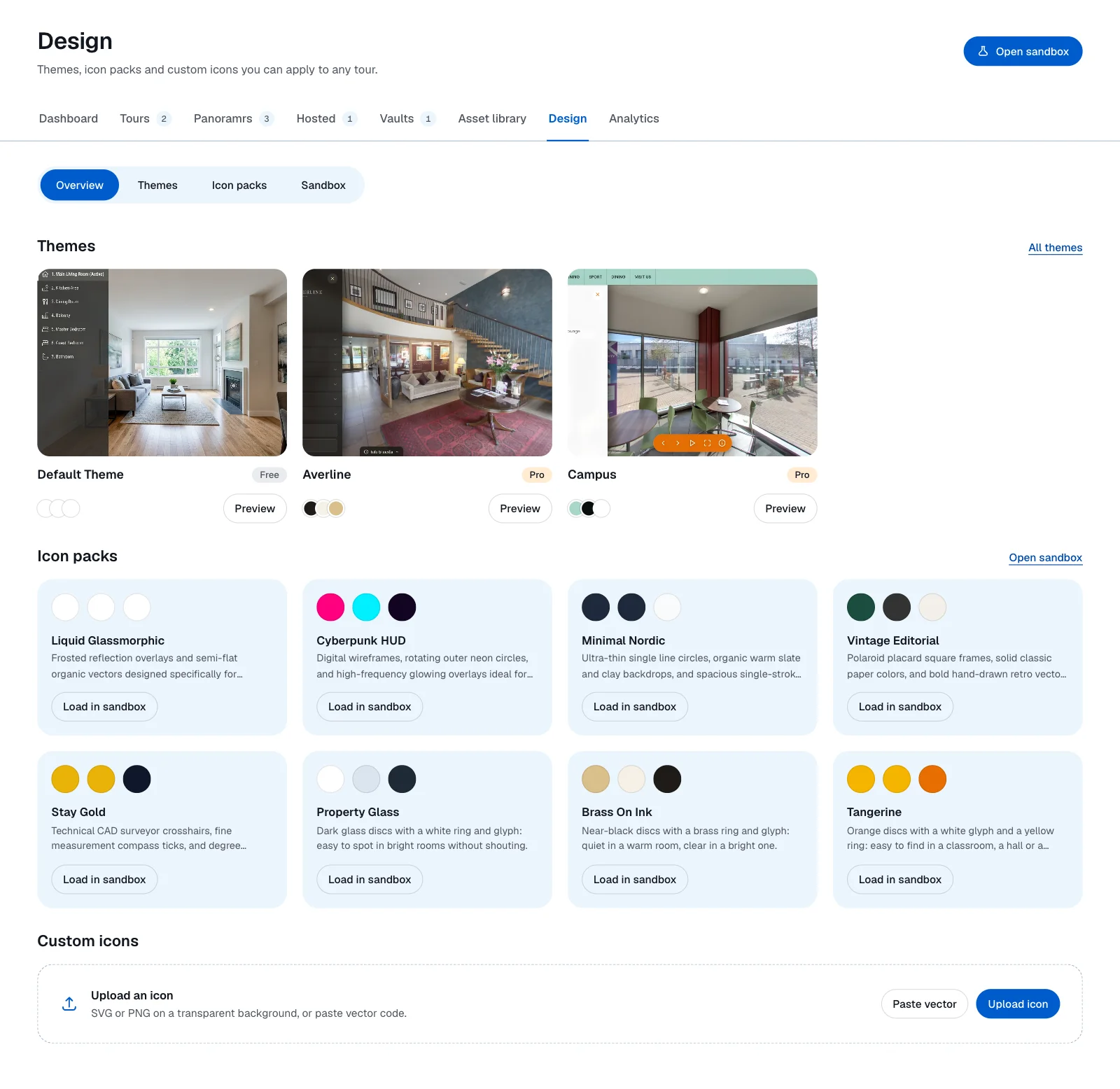
Design is a hub for looks, not a tour's editor. It has four parts, chosen with a switch under the title: Overview, Themes, Icon packs and Sandbox.
- Overview shows four of the themes with Preview on each (All themes opens the whole list), the Icon packs with Load in sandbox, My saved icon packs once you have saved some, and Custom icons with Paste vector and Upload icon.
- Preview shows a theme on the tour you edited last, without saving anything. Open sandbox at the top right opens the Sandbox, where you try the colors, size and hover effect of hotspot icons and can keep the result with Save Icon Pack.
- Help, beside Open sandbox, opens a window headed
Help: the Design hubwith a video of about a minute on these four parts and a Read the help article link to Choose a look for your tour. - To put a theme on a tour, use that tour's own Design tab: see Choose a look for your tour.
Analytics
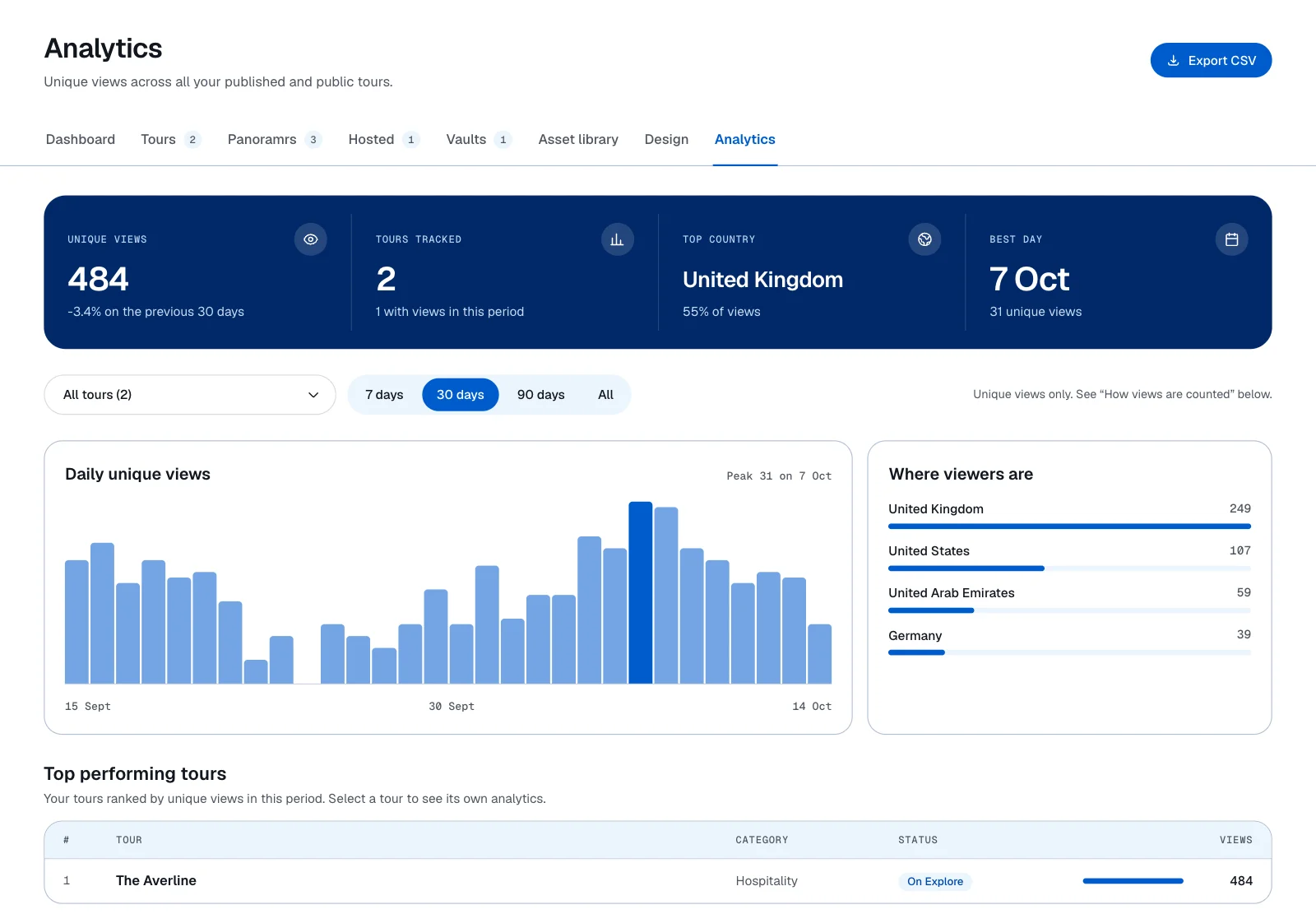
Analytics shows the views of the tours you own, for all of them or for one. It has four numbers (Unique views, Tours tracked or Rooms viewed, Top country and Best day), a tour menu that reads All tours (3), the periods 7 days, 30 days, 90 days and All, a chart of unique views, Where viewers are, Top performing tours and How views are counted. Export CSV at the top right downloads what is on the page. Until a view has been recorded the tab says No views recorded yet.
Tour analytics says what counts as a view.
My requests
My requests lists what you sent to Support from the Help window and what came back. It shows only while the Help service is on. Each request has its subject and status; opening one shows the conversation, a box to reply, and, once it is solved, a How did we do? rating. It has no number on the tab and no buttons at the top right.
What each kind of account has
| Account | What it sees |
|---|---|
| A Free account | Dashboard, Tours, Panoramrs, Asset library, Design and Analytics, and Vaults while Vaults are on sale. No Hosted tab. The Plan hosting number on the Dashboard says Your Free plan does not host tours. and links to See plans |
| A paid plan (Pro, Agency, Enterprise) | All eight, with Vaults while Vaults are on sale |
| Somebody a tour was shared with (a client, a colleague) | The tabs of their own account, by their own plan. The shared tour is in Tours under the Shared chip and on the Dashboard under Shared with you. Hosted, Vaults, Panoramrs, Asset library and Analytics list what they own, not the owner's. Inside the shared tour the tabs depend on their role: see What each tab in the tour editor does |
| A team member (somebody with a seat in another person's account) | Their own account, and a Working in menu at the top of the list at the left of My Account and in the account header, to switch between their own account and the accounts they have a seat in. In another person's account they see that account's plan, tours and library, and only what the owner allowed (Add team members to your account) |
| A free-trial guest account | No tabs: the site header offers Sign in and Get started free instead (Try Panoramr without an account) |
| An account whose email address is not confirmed | The tabs can send you to the Check your inbox page until it is (Sign up, confirm your email and sign in) |
The account menu
Click your name or picture at the top right of the site header (on a window narrower than 1,024 pixels, the menu button) to open the account menu. The bell and the Dashboard button are beside it (Notifications).
| Item | Where it goes |
|---|---|
| My Account | The My profile page, with a list at the left: My profile, Creator profile, Brands, Client Workspaces, Plan & billing and Pricing & upgrades |
| Plan & billing | The Plan & billing page of that list: your plan, what you use, your card and every invoice |
| Pricing & Upgrades | The Pricing & upgrades page of that list: the plans to choose from (with a plan you pay for, Plan & billing opens instead) |
| Help Center | This Help Center |
| Log Out | Sign out |
| Theme: Light, Dark or Device | How the site looks. Device, the setting until you choose, follows your computer's or phone's own light or dark setting and changes when it does. Your choice is kept in this browser for every Panoramr page, the social app included. Without signing in, the same three are under the theme button in the site header |
The menu does not repeat the tabs of your account: Tours, Panoramrs, Asset library, Vaults and Analytics are in the row of tabs. It has no Settings item. The account's own options are on My profile: My details, Subscription Package (with Manage Billing), How you sign in, Update Password, Two-Factor Authentication and Delete Account (Set up two-factor authentication, Delete your account). Creator profile is where your public name and details are (Fill in your creator profile). Plan & billing and Pricing & upgrades are not in the list in the Panoramr mobile app. A tour's own options are on its Settings tab.
The My profile page
My profile is the first page of My Account. It holds your name, email address, plan, ways of signing in and password, then the cards for Two-Factor Authentication (Set up two-factor authentication) and Delete Account (Delete your account). The list at the left has My profile, Creator profile, Brands, Client Workspaces, Plan & billing and Pricing & upgrades.
Who can use it. Every signed-in account, on any plan. The two billing links are not shown in the Panoramr mobile app. A guest account has no My profile.
Username (Profile URL)
The handle in the link to your public profile.
Where: My details, the first field, after the fixed text panoramr.com/creator/.
Default: The handle made when the account was created.
What it does: Letters, numbers and dashes: what you type is turned into lower case, spaces and underscores become dashes, and other marks are dropped. It must be unique. A handle the team keeps (such as admin, support or panoramr) is refused: That handle is kept. Please choose another.
What visitors see: The link to your public profile uses it. See Fill in your creator profile.
Needs: Nothing.
Related: Name.
Name
Your name for billing and email.
Where: My details, left of Email.
Default: The name you gave when you signed up.
What it does: Up to the character limit the box shows (a red Character limit reached line appears at the limit). It cannot contain a link or an email address. The line under it says: used for billing and email.
What visitors see: Not this name. The name people see is the Creator Name under Creator profile.
Needs: Nothing.
Related: Username (Profile URL).
The address your account is known by and Panoramr writes to.
Where: My details, right of Name. Default: The address you signed up with. What it does: Changing it saves the new address as not confirmed and emails a link to it. When the old address was confirmed, Panoramr also emails the old address and signs your other devices out. The same address typed in other capitals is not a change. What visitors see: Nothing. The address is not shown to anyone. Needs: A real address that no other account has. See Confirm your email address. Related: Current password.
Current password
Your password, asked before the address of a confirmed account is changed.
Where: My details, under Email, only after you type a different address. Default: Empty. What it does: Proves it is you, because a changed address is how an account is taken over. It is not asked on an account that has no password of its own, or whose address was never confirmed. What visitors see: Nothing. Needs: A different address in Email. Related: Save Profile.
Save Profile
Save the details above.
Where: the button at the bottom of My details. It reads Saved for a moment afterwards. Default: Not applicable. What it does: Saves Username (Profile URL), Name and Email. What visitors see: Nothing yet. Needs: Nothing. Related: Email.
Subscription Package
Your current plan.
Where: the card under My details, headed Subscription Package, with Current Plan and the plan's name.
Default: Free.
What it does: Manage Billing opens the billing portal, and Compare available plans opens the plans. Both are left out of the Panoramr mobile app. Plan & billing in the list at the left has more.
What visitors see: Nothing.
Needs: Nothing.
Related: Invoices, billing history and your card.
Manage Billing
The button that opens the billing portal.
Where: the card Subscription Package, on the right of Current Plan. Left out of the Panoramr mobile app.
Default: Not applicable.
What it does: Opens Stripe's own billing portal for your account on another site, and brings you back to Plan & billing when you leave it. If billing is not available it stays here and answers Billing is not available right now. Please try again later. or We could not open the billing portal. Please try again later.
What visitors see: Nothing.
Needs: Nothing. An account without a billing record gets one made when the portal opens.
Related: Invoices, billing history and your card.
How you sign in
The ways this account can be signed in to.
Where: the card under Subscription Package.
Default: A line Email and password reading Set, or Not set yet for an account made with a provider.
What it does: Lists Email and password and each Google, Facebook or Microsoft sign-in linked to the account, with the date it was connected. An account that signs in only with a provider says so and asks you to choose a password below.
What visitors see: Nothing.
Needs: Nothing.
Related: Sign up, confirm your email and sign in.
New Password
Choose a new password.
Where: the card Update Password, under How you sign in, with Current Password, Confirm Password and Save.
Default: Empty. Current Password is left out when the account never had a password of its own.
What it does: Needs at least 10 characters and a password that is not in a known data leak (on the live and staging sites; other sites ask for 8). Saving ends every other session and every API token, and Panoramr emails you that the password was changed. The form then says Password successfully updated!
What visitors see: Nothing.
Needs: Confirm Password filled in the same way. Where Panoramr requires a confirmed email address, an account that has not confirmed it (the bar says Your email address is not confirmed yet) is sent to the Check your inbox page when it saves, so confirm the address first.
Related: Fix sign-in problems.
Confirm Password
The new password typed a second time.
Where: the card Update Password, under New Password. Default: Empty. What it does: Must be the same as New Password. If they differ, nothing is saved, the message appears under New Password and both new boxes are emptied. What visitors see: Nothing. Needs: Nothing. Related: New Password.
Where do I find...?
| I want to find | Where it is |
|---|---|
| A Panoramr I posted, to change or delete it | Panoramrs tab: Edit, View or Delete on its card |
| A panorama or a file in my library | Asset library tab: Search the library, or Any tour to see one tour's files |
| A tour I deleted | Asset library tab, Trash chip, Deleted tours, then Restore (Delete tours and panoramas, and get them back) |
| A tour somebody shared with me | Tours tab, chip Shared; or Shared with you on the Dashboard |
| An invoice, or my card | Plan & billing in the account menu, or in the list of My Account. A Vault's own page lists its payments too |
| How much of my plan's hosting is used | The Plan hosting number on the Dashboard, the band of the Hosted tab, or Hosted with your own branding under What you use on Plan & billing |
| The tours that are hosted | Hosted tab, under Hosted tours; or the chip Hosted on Tours |
| When a Vault ends | Vaults tab, the date line on its card; the Needs attention box on the Dashboard when it is within 30 days |
| The people who work in my account with their own login | Team, in the list of My Account (Add team members to your account) |
| The people I shared a tour with | There is no list of people for the whole account. The chip Shared on Tours lists the tours you share, and each tour's Settings tab (Advanced view) names its people under Project Collaborators (Invite collaborators to a tour) |
| What a role can open by default | Client Workspaces, in My Account (Choose what Viewers, Editors and Admins can open) |
| Views of my tours | Analytics tab; for one tour, that tour's own Analytics tab |
| A theme or an icon pack | Design tab |
| Likes, comments and new followers | The bell in the site header |
| My name, email, password or two-factor | My Account, then My profile |
Troubleshooting
There is no Hosted tab. You are on the Free plan: the tab is for the paid plans. Use Plan & billing in the account menu. A Vault does not need a plan, so you may have bought one on Free: its tour is on the Vaults tab, and the chip Hosted on Tours lists it. On the Dashboard the Hosted tours number counts it and links to See plans. See Free publishing, plan hosting or a Vault for what hosting gives.
There is no Vaults tab. Vaults are not on sale at the moment. If you already own a Vault, its page still opens: use View Vaults on the Dashboard, or the Vault card on the tour's Hosting list. The Vaults link in the site header is not the tab: it opens the public page about Vaults.
The number on a tab is lower than I expected. Tours counts the tours you own, not the ones shared with you; Hosted counts your own hosted tours; Panoramrs counts the Panoramrs you posted.
Needs attention has gone. Its cross hides what it listed until something new needs a look, such as a Vault that is about to end. Its arrow only folds it, and this browser remembers whether it is folded.
Upload media on the Dashboard did not start an upload. It opens the Asset library. Click Upload media there and choose the files.
A tab is missing in a tour's editor. That is the editor's own row of tabs, not the account's: see What each tab in the tour editor does.
A page has no row of tabs. It is one of the pages listed under The account header. Click Dashboard in the site header.
A page sends me to Check your inbox. Your email address is not confirmed. See Sign up, confirm your email and sign in.
The site header has no bell or Dashboard button. The window is narrower than 1,024 pixels. The menu button holds Dashboard and the account links, but not the bell: see Notifications. A free-trial guest account has neither.
Videos
Transcript
The Dashboard is where your account starts. Create tour makes a new tour, Add Panoramr shares a single 360 photo, and Upload media opens your library. The tabs below lead to the other parts of your account.
When something needs a look, a Needs attention box appears at the top. Here, a tour fits in what is left of your plan's hosting, and Host in my plan opens its Publish tab.
The dark band has four numbers, each with a link to the page behind it. Views counts the visits to all your tours. Hosted tours says how many are in a Vault and how many in your plan. Plan hosting shows how much of your plan's hosting is used, and Vaults says when the next one ends.
Continue editing shows the four tours you edited last, each with its status and an Edit button. Below it are your newest panoramas and your recent Panoramrs, each with a link to all of them.
Transcript
My Tours lists every tour you can open: the ones you made, and the ones shared with you. Each row shows its status, where it is hosted, its views and when it was last edited. Edit opens the tour in the editor.
The chips filter the list, each with a count: Hosted, Published, Drafts and Shared. Search looks in a tour's name and category, and the sort list orders them by last edited, most views or name.
The three dots beside Edit open a tour's Hotspots, Settings or Publish tab directly. A tour you delete is not in this list: it waits in the Trash of the Asset library, where you can restore it.
Transcript
A Panoramr is a single 360 photo that you share on Explore, on your profile and on the map. Add Panoramr shares a new one. The dark band counts your Panoramrs, their views, likes and comments, and how many have a place.
A Panoramr with no place is not on the map, so a banner says how many are missing one, and Add places lists them. The chips show all of them, the ones with a place or the ones without, and the sort list puts the most viewed first.
Each card shows its title, its date, its place and its views. Edit changes its details, View opens it as visitors see it, and Delete takes it away.
Transcript
The Hosted tab is for the paid plans. The dark band shows how much of your plan's hosting is used, counted in panoramas, with Manage plan beside it, and your Vaults, with the date the next one ends.
Hosted tours lists every tour that is online with your own branding, or none, instead of Panoramr's, and where it is hosted. A tour in your plan has Settings, which opens its Publish tab. A tour in a Vault shows the date it is hosted until, and Manage Vault opens the Vault.
Ready to host lists the drafts that fit in what your plan has left. Host in my plan opens that tour's Publish tab, where you switch hosting on. Host a tour, at the top, jumps to this list.
Transcript
A Vault hosts one tour for the term you paid for, with your own branding, or none, instead of Panoramr's. Each card shows the Vault's size, its status, the tour in it and how full it is, and the date it is hosted until. Buy a Vault, at the top, opens the store.
About Vaults, under the cards, says what a Vault gives a tour, the sizes and terms, how to put a tour in, and what happens when it ends.
Open goes to the Vault's own page: its term, the tour in it, Change this Vault to make it bigger or longer, and its history.
Transcript
The Media library holds your panoramas, pictures, video, audio and documents, whether or not a tour uses them. Upload media adds files, and Add Panoramr puts 360 photos in your library. Storage shows how much of your plan's library space you use.
The chips show one kind of file at a time, each with a count. Any tour shows the files of one tour, Any folder the files of one folder, and search finds a file by its name.
Anything you delete goes to the Trash first, and stays there for thirty days. Restore puts it back, and Delete for good removes it at once.
Transcript
Analytics shows the views of the tours you own. The dark band has your unique views, how many tours are tracked, your top country and your best day. Choose a period, seven, thirty or ninety days, or all of them, and everything is counted again.
Where viewers are lists the countries, and Top performing tours ranks your tours by views. The tour menu narrows the page to one tour, and Export CSV downloads what is on the page.
Next steps
Was this article helpful?